Quick Answer
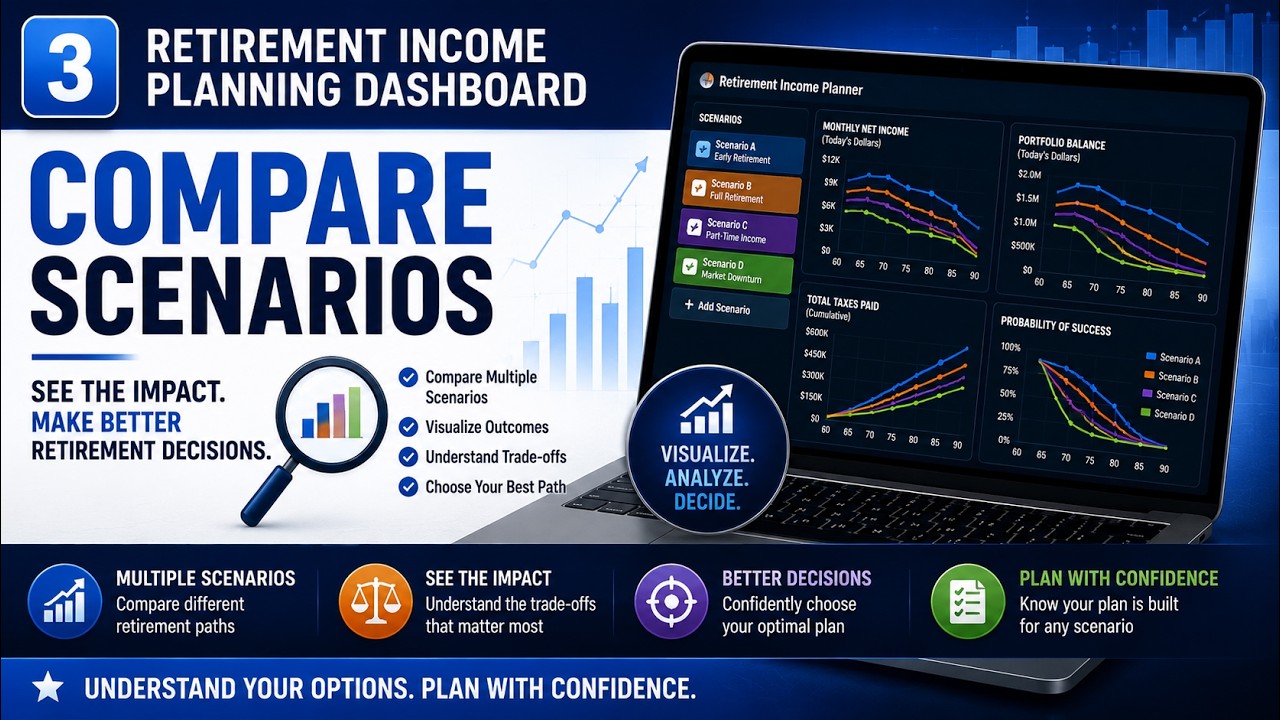
Comparing scenarios is where retirement planning gets genuinely useful. A single plan tells you whether one set of assumptions works. Comparing several tells you which choice is actually better: retire now or in two years, claim Social Security early or wait, work part time or not, stay put or move.

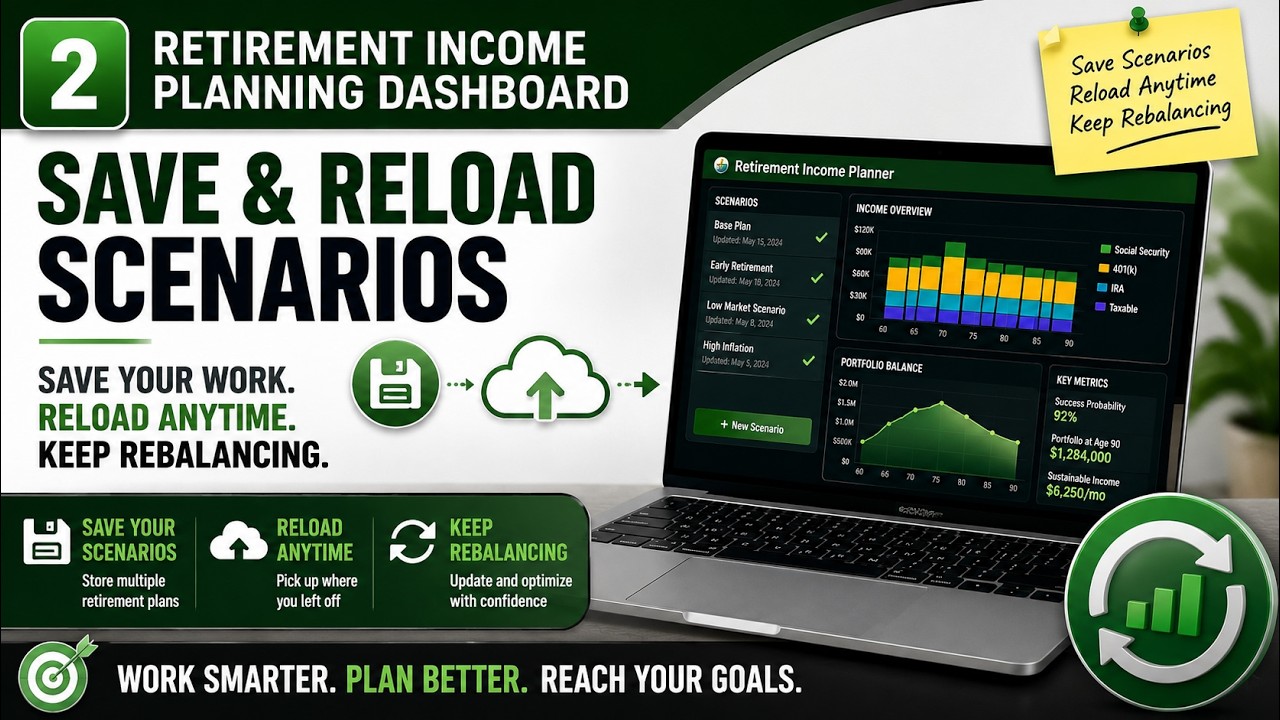
The AI Retirement Income Planner gives you two complementary ways to keep versions of a plan. Saved plans holds up to three snapshots in your browser for quick side-by-side comparison against your current plan. Export to JSON saves a plan as a file on your own computer, so you can keep an unlimited library of scenarios, reload any of them later, and move them between devices. This guide covers both, plus how to compare scenarios side by side and what is actually worth comparing.
Key Takeaways
- Auto-save is not a permanent copy. Your work is auto-saved in the browser as you go, but to keep a distinct version you save it to a slot or export it to a file.
- Name every scenario. A descriptive title (like "Retire at 62, ACA-optimized") is the difference between a useful library and a folder of files you cannot tell apart.
- Use saved-plan slots for quick A/B comparison. Up to three snapshots live on your device and can be compared against your current plan in one view.
- Export to JSON for an unlimited, portable library. Files live on your computer, work as backups, and move between devices. Slots do not travel inside an export.
- Compare, do not guess. Enter an alternative, calculate it, and put it next to your baseline instead of wondering whether it would have been better.
Auto-Save Is Not the Same as Saving a Copy
The first thing to understand is the difference between the plan auto-saving and you saving a copy of it.
As you work, the planner auto-saves to your browser so nothing is lost if you close the tab and come back. That is a convenience, not a filing system. It keeps your current plan, not a named version you can return to. The moment you start changing numbers, that auto-saved state changes with them.
To keep a specific version, so you can come back to exactly this plan after changing your mind, you either save it to a Saved plans slot or export it as a JSON file. Both are covered below, and most people end up using each for a different purpose. This is the natural next step once you have built a first plan in the step-by-step setup guide.
Name Each Scenario So You Know What It Is
Before you save anything, name it. The plan's subtitle is editable: click it and describe what this scenario represents. A few seconds spent here saves a lot of confusion later.
Good scenario names describe the decision, not just the date:
- "Retire at 62, ACA-optimized"
- "Delay Social Security to 67"
- "UK tax resident from 65"
- "Downsize house in Phase 1"
- "Work part time to 65"
When you later have several plans side by side, these names are what let you tell them apart at a glance. The name is part of the plan itself, so it is kept when the plan auto-saves, written into an exported file, and shown on the plan's tile in the Saved plans panel.
Save Plans to Slots for Quick Comparison
The Saved plans panel keeps up to three plan snapshots in your browser. Think of them as quick-access A/B/C slots for the versions you are actively weighing against each other.
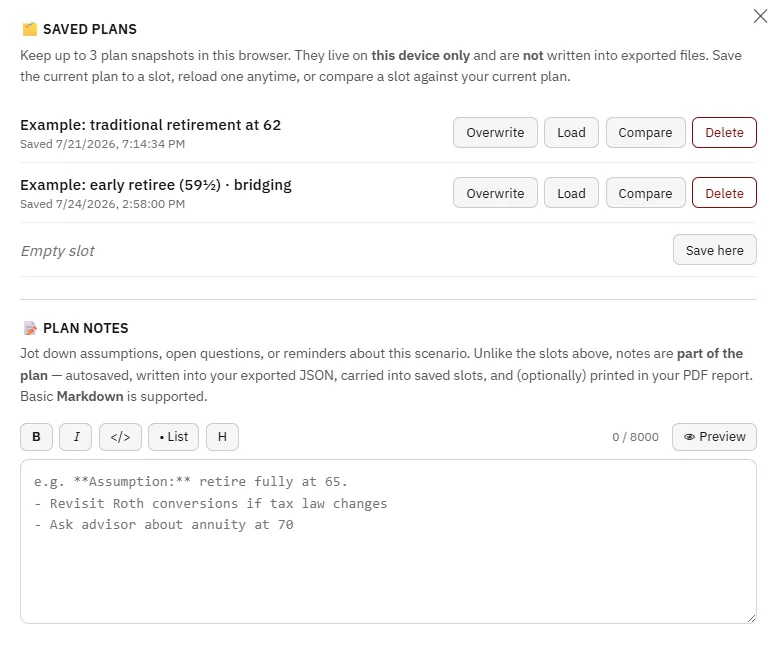
From the panel you can:
- Save your current plan into a slot, capturing its complete state.
- Reload any slot to bring that plan back as your working plan.
- Compare a slot against your current plan in a single side-by-side view.
Two things are worth knowing. First, these snapshots live on this device only and are deliberately not written into exported files, so a JSON export you send to another computer will not carry your slots with it. Second, three slots is intentionally a small, focused set for the decision in front of you. When you want to keep more than three versions, that is what JSON export is for.
Export to JSON for an Unlimited Library
Exporting a plan writes it to a JSON file in your downloads folder. This is your permanent, portable copy.

Because each export is a complete snapshot of the plan, you can keep as many as you like, one file per scenario, and reload any of them later with Import. That makes JSON export the right tool for:
- A full library of scenarios beyond the three quick slots.
- Backups you keep on your own computer.
- Moving a plan between devices, or keeping a copy somewhere safe.
A typical rhythm is to build a plan, name it, export it, then reset and build the next one. Later you import whichever plans you want to revisit and fine-tune them from there. Everything stays on your machine; the file is yours.
Reset to a Clean Baseline for a New Scenario
When you want to plan something genuinely different from scratch, the Reset control returns the dashboard to its default values. That is a good starting point for a brand-new scenario rather than editing your way out of an existing one.
Resetting only changes your current working plan. Anything you have already exported to a file is untouched, so you can reset with confidence and import a previous plan whenever you want it back. If you reset and then wish you had not, importing your last export restores exactly where you were.
Compare Scenarios Side by Side
This is the part that turns saved plans into better decisions. Once you have a plan in a slot, the Compare view puts it next to your current plan and shows how they differ, so you can see the effect of a change on income, tax, and the ending balance in each phase rather than trying to hold two sets of numbers in your head.
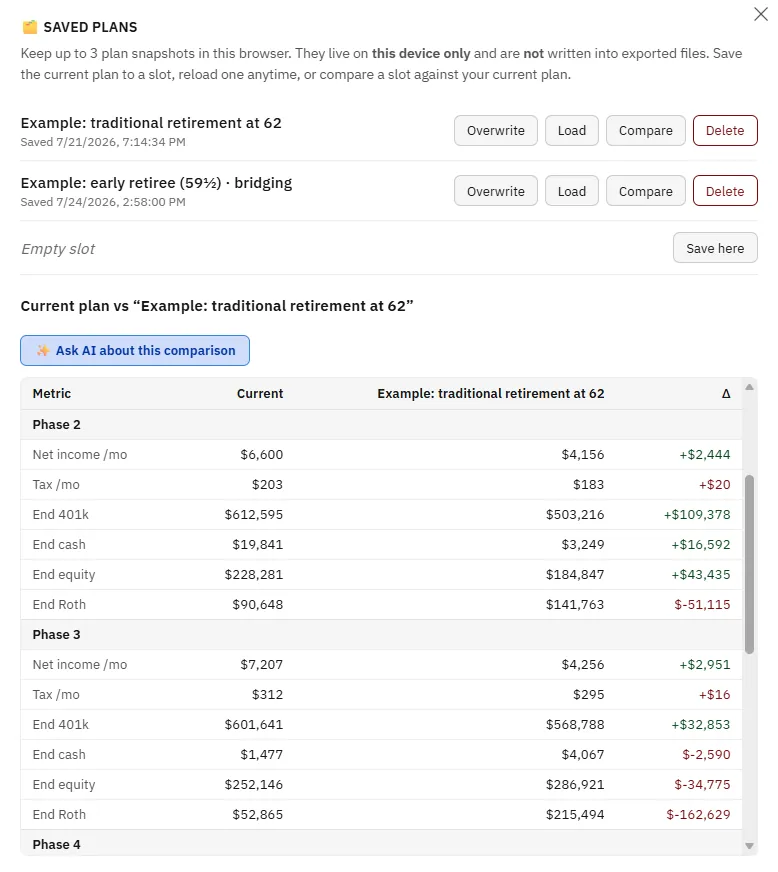
If you want to look at more than two scenarios at the same time, there is a simple alternative: open the planner in several browser tabs and load a different scenario in each one. Each tab is completely independent, so you can save or import in one tab without affecting the others and flick between them to compare. It is a low-tech approach that works well when you are weighing three or four options at once.
However you do it, the goal is the same. Instead of wondering whether an idea would have been better, you put the two plans next to each other and read the answer.
What Is Worth Comparing
The value of comparison comes from asking the right questions. A few that tend to change a plan the most:
- Working part time for a few years. Adding part-time income raises your total income, but in the years before Medicare it also raises your modified adjusted gross income, which can cost you ACA cost-sharing reductions if it crosses a threshold. Comparing a part-time scenario against your baseline shows how much you can earn before a subsidy is affected, and whether the extra income is worth it.
- A one-time lump sum. Selling a property, an inheritance, or a maturing bond can be modeled as a lump sum in a specific phase, which changes how much you need to withdraw from your accounts around it. A "downsize the house" scenario often reshapes the whole plan.
- Moving abroad. Displaying a plan in another currency and switching residency can change the tax and healthcare picture significantly, which is worth comparing directly against staying put.
- Spending more, or retiring earlier. Both raise the income you draw and lower later balances. Seeing the trade-off next to your baseline is more honest than guessing, and it connects directly to how much you can safely spend.
In each case the workflow is the same: save your baseline, make one change, and compare. Changing one thing at a time is what makes the comparison readable.
Ask AI About the Comparison
If you have connected an API key, the compare view includes an "Ask AI about this comparison" button. It sends the two plans' outcomes to the AI and asks for a plain-English read on the trade-off, so you get an explanation of why one plan ends with a higher balance or a lower tax bill rather than just the raw numbers. This is optional and covered in more depth in the guide on comparing plans with AI. The comparison itself works fully without it.
FAQ
What is the difference between saved-plan slots and exporting to JSON?
Saved-plan slots keep up to three snapshots in your browser for quick side-by-side comparison on that device, and they are not included in exports. Exporting to JSON writes a plan to a file on your computer, which you can keep in unlimited numbers, use as a backup, and move between devices. Slots are for the decision in front of you; exports are your permanent library.
Does resetting the planner delete my saved plans?
Resetting changes only your current working plan back to defaults. Any plan you have exported to a JSON file is a separate copy on your computer and is untouched, so you can import it again at any time. It is good practice to export a plan before a big change so you always have a way back.
How many scenarios can I compare at once?
The built-in compare view puts one saved plan next to your current plan. To look at several at the same time, open the planner in multiple browser tabs and load a different scenario in each, since each tab is independent. For most decisions, comparing two plans that differ by a single change is the clearest approach.
Will my plans be uploaded anywhere when I save them?
No. Saved-plan slots live in your browser on that device, and JSON exports are files saved to your own computer. There is no planner account and nothing is uploaded to the developer. You control where your exported files go.
Why should I compare scenarios instead of just building one good plan?
A single plan only tells you whether one set of assumptions works. It cannot tell you whether a different choice would have been better. Comparing a baseline against alternatives, one change at a time, is how you see the actual trade-off behind a decision like when to claim Social Security or whether to retire two years earlier.
Source Links
- Social Security Administration, Retirement Benefits: https://www.ssa.gov/benefits/retirement/
- HealthCare.gov, Health Coverage If You Retire Before 65: https://www.healthcare.gov/retirees/
- IRS, Required Minimum Distributions FAQs: https://www.irs.gov/retirement-plans/retirement-plan-and-ira-required-minimum-distributions-faqs
- AI Retirement Income Planner: https://airetirementincomeplanner.com/
Educational Disclaimer
This article is for general education only. It is not financial, tax, investment, legal, healthcare, Social Security, Medicare, estate, or retirement advice. It does not provide personalized recommendations. Projections produced by any planning tool are estimates based on the assumptions entered. Rules, tax law, and costs change. Consult qualified financial, tax, and legal professionals before making significant financial decisions.