
Quick Answer
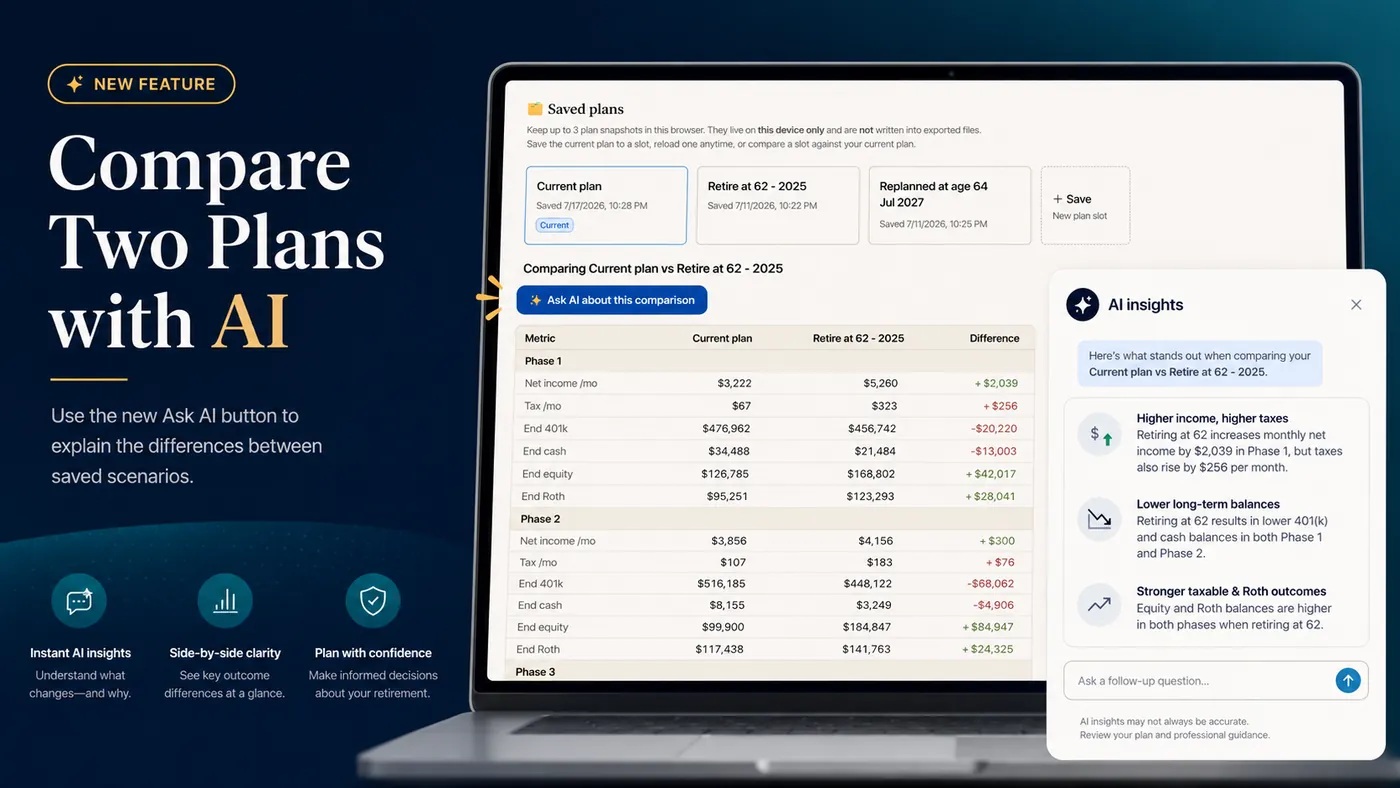
The AI Retirement Income Planner lets you save up to three plan snapshots, compare any one of them against your current plan in a side-by-side table, and then click Ask AI about this comparison to have AI explain, in plain English, why the two plans differ.
The button appears on the comparison table itself. When you click it, the planner sends the AI two things: the outcome numbers from the side-by-side table, and a short list of the input assumptions that actually differ between the two plans. The AI Chat tab then opens and the answer streams in. It focuses on the useful question a side-by-side table cannot answer on its own: not just what changed, but which input changes caused which outcome changes, and what trade-offs that creates.
It is optional, it uses your own AI key, and it is framed to lay out the trade-offs rather than tell you which plan to pick.
Key Takeaways
- The planner holds up to three saved plan snapshots on your device, and each can be compared against your current plan.
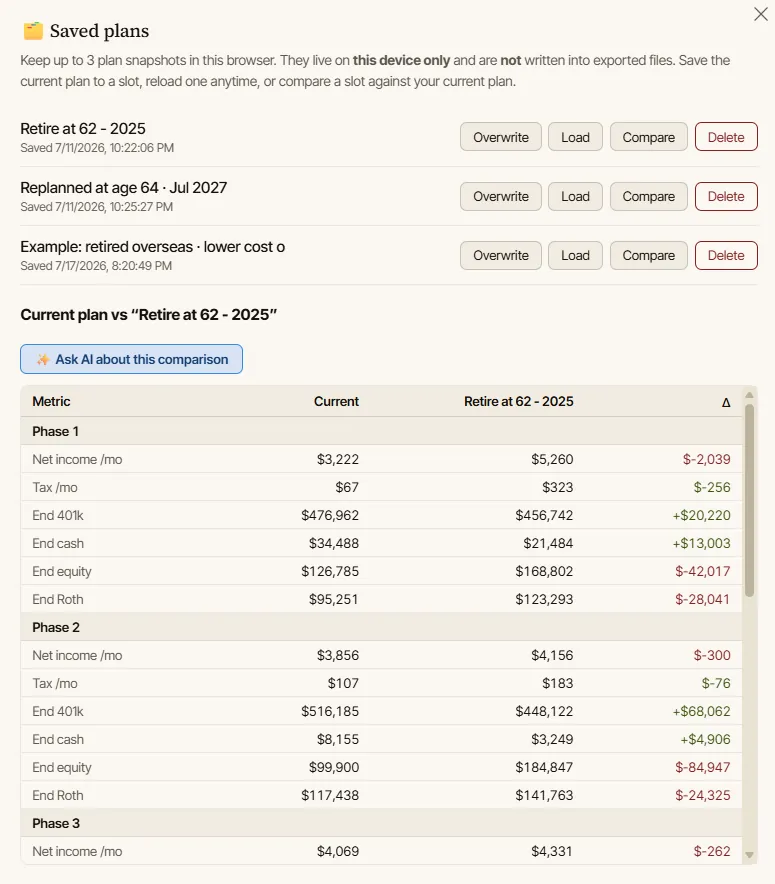
- The comparison table shows per-phase net income, tax, and ending balances, with the difference highlighted.
- Ask AI about this comparison appears on that table and sends the metrics plus a diff of the input assumptions to your AI model.
- The AI explains which input differences drive the outcome differences, not just the raw deltas.
- Your current plan is attached to the chat automatically; the saved plan travels inside the prompt.
- It needs an API key, like the planner's other AI features, and works with any supported provider.
- The prompt tells the AI to lay out trade-offs and not to pick a plan for you.
What the Button Does
A side-by-side table is good at showing you that two plans differ. It is not good at telling you why.
Say one plan ends with $1.39M and the other with $364k. The table shows the gap. It does not tell you whether that gap comes from the retirement age you changed, or from a larger starting balance, a spouse's Social Security, a different inflation assumption, and a Roth conversion you also changed at the same time. Those are very different conclusions, and only one of them is the decision you were actually testing.
Ask AI about this comparison is built for exactly that gap. It takes the comparison you are already looking at and asks the AI to separate the real drivers from the noise. The typical answer ranks the input differences by impact, ties each one to the outcome it moved, spells out the trade-offs, and lists the assumptions worth double-checking. This pairs naturally with the broader idea of how an AI co-pilot can explain a retirement plan: the calculator produces the numbers, and the AI translates them.
How to Use It
The button only appears once a comparison is on screen, so there are a few short steps to get there.
- Open Saved plans from the top toolbar.
- Save your current plan to a slot and give it a name (for example, "Retire at 62").
- Change some inputs so your current plan is different from the saved one, or import a plan you exported earlier. A comparison is only interesting when the two plans differ.
- Click Compare on the saved slot. The Current plan vs "<name>" table appears.
- Click ✨ Ask AI about this comparison. The Saved plans panel closes, the AI Chat tab opens in Plan mode, and the answer streams in.
If you have not set up an AI key yet, the button still works: it remembers your request and opens the key-setup screen, then asks the question automatically once your key is saved. Setting up a provider is a one-time step covered in using AI in the retirement planner.
What the AI Actually Sees
It helps to know exactly what is sent, because it explains why the answers are grounded rather than generic.
Two things go to the model:
- The current plan, in full. The planner attaches a complete snapshot of your current plan to every AI message automatically, including its calculated phase results and Plan Health signals. You do not have to describe it.
- The saved plan, as figures in the prompt. The model cannot see your saved slot directly, so the prompt spells it out: the outcome metrics by phase (net income, tax, and ending balances, written as "current vs saved"), followed by a short diff of the input assumptions that differ between the two plans, each written as
current → saved.
That input diff is the important part. Instead of leaving the AI to guess why the numbers moved, the prompt hands it the exact levers that changed, such as ssStartAge: 62 → 70, bal401k: 100000 → 300000, or filingStatus: single → mfj. The prompt then asks the model to explain which of those differences most drive the outcome gap, to lay out the trade-offs, and to flag which assumptions you should verify, and it explicitly tells the model not to choose a plan for you.
Because the real numbers come from the planner's deterministic engine and the AI only interprets them, the explanation starts from calculated results rather than made-up ones. That is the whole point of why AI needs a retirement calculator underneath it.
A Worked Example
Suppose you compare a plan named "Retire later (SS70)" against your current plan and the ending balances are $364k versus $1.39M. That is a big gap, and it would be easy to conclude that delaying Social Security to 70 is what created it.
A good comparison answer pushes back on that. In a real example, the AI ranked the differences and found that the ending-balance gap was driven mostly by two things that had nothing to do with retirement timing: the saved plan started with three times the 401k balance, and it added a spouse's Social Security. Delaying Social Security to 70, the change you were actually testing, was real but smaller, and in the near term it made income tighter, not looser, because it removed eight years of benefits. The answer then flagged the assumptions to reconcile, including a different inflation rate and a Roth conversion that were changed at the same time, and offered to model the timing change on its own so the comparison would be apples-to-apples.
That is the difference between reading a table and understanding it: the table shows a $1M gap, and the AI shows that most of the gap is not the decision you thought you were making.
See the full worked example
The exact prompt the planner builds and the AI's complete driver analysis, so you can see the format of the question and the shape of a good answer before you run your own.
Download the sample report (PDF)What It Will Not Do
The comparison feature is deliberately scoped to explanation, not decisions.
- It does not tell you which plan to choose. The prompt asks for trade-offs so you can decide.
- It does not change your plan. It only reads and explains; nothing is edited by clicking the button.
- It does not verify tax law, Social Security rules, or Medicare thresholds. Confirm rule-based claims with official sources.
- It is not a substitute for professional review on a decision that matters.
AI can also sound confident while being wrong, so treat a comparison answer as a well-organized starting point, not a verdict. Keeping AI in that lane is the core of how to use the AI co-pilot safely.
Tips for a Better Comparison
- Change one thing at a time. If you compare a plan that differs on six inputs, the AI has to untangle six drivers. Isolate the decision you actually care about and the answer gets much sharper.
- Name your plans clearly. "Retire at 62" and "Retire at 65" read better in the answer than "Slot 1" and "Slot 2."
- Compare in real terms when inflation differs. If the two plans use different inflation rates, raw ending balances are not directly comparable, and a good answer will say so.
- Ask a follow-up. The answer lands in the normal AI Chat, so you can keep going: ask it to isolate a single change, or to turn the trade-offs into a checklist.
- Verify before acting. Anything the AI says about tax brackets, ACA, IRMAA, or Social Security timing should be checked against the planner's own output and official sources.
FAQ
How many plans can I compare?
The planner keeps up to three saved plan snapshots in your browser, and each can be compared against your current plan one at a time. For more variations, export plans to JSON files and import them back in when you want to compare them.
Does the AI see both plans in full?
Not quite. Your current plan is attached to the chat automatically in full. The saved plan is described inside the prompt as outcome metrics plus a diff of the input assumptions that differ, which is enough for the AI to explain the differences.
Do I need an API key?
Yes. Like the planner's other AI features, comparison analysis uses your own key with a supported provider (Claude, OpenAI, Gemini, OpenRouter, or a local model). The planner's deterministic calculations, including the comparison table itself, work with no key at all.
Will it tell me which plan is better?
No. The prompt deliberately asks the AI to lay out the trade-offs and flag what to verify, and it tells the model not to choose for you. The decision stays with you.
Where does the answer appear?
In the AI Chat tab. Clicking the button closes the Saved plans panel, switches to the AI Chat tab in Plan mode, and sends the question, so the answer streams in like any other chat.
Source Links
- OpenAI, ChatGPT General FAQ: https://help.openai.com/en/articles/6783457-chatgpt-general-faq
- Investor.gov, Artificial Intelligence and Investment Fraud: https://www.investor.gov/introduction-investing/general-resources/news-alerts/alerts-bulletins/investor-alerts/artificial-intelligence-fraud
- AI Retirement Income Planner: https://airetirementincomeplanner.com/
Educational Disclaimer
This article is for general education only. It is not financial, tax, investment, legal, healthcare, Social Security, Medicare, estate, or retirement advice. AI output and planner projections depend on inputs and assumptions, and real-world outcomes can differ. Verify important numbers and rules with official sources and a qualified professional before acting.