Quick Answer
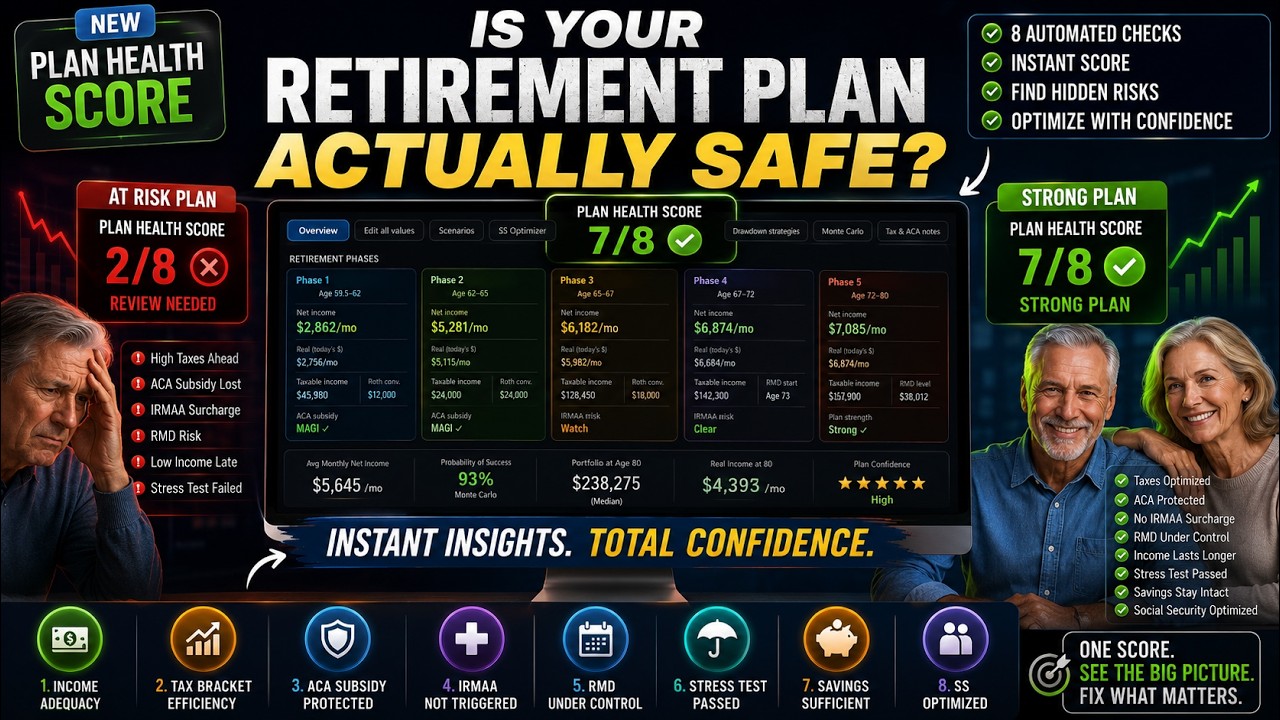
Plan Health is the planner's built-in checklist for finding weak spots in a retirement income plan.

It helps you answer questions like:
- Does income look adequate across phases?
- Are taxes creating avoidable pressure?
- Is an ACA or IRMAA threshold close?
- Do RMDs need attention?
- Does the portfolio survive to the plan end?
- Does the income floor look thin?
- Does the plan hold up under a stress test?
- Does a surviving spouse face a large income drop?
- Are custom income or legacy goals being met?
Plan Health is not a pass/fail exam. The checks are ranked by importance, and the planner says so directly: a plan can be complete without every check green.
Use it like this:
- Build or load your plan.
- Click the Plan Health badge in the toolbar.
- Read the flagged checks first, starting with the Essential ones.
- Expand "Why this matters" for any unclear item.
- Test one change at a time.
- Compare the before and after result.
- Use the Confidence tab for the wider view.
- Save or export the plan once assumptions are documented.
Key Takeaways
- Plan Health is a live checklist that updates as planner inputs change.
- The badge shows passed checks over applicable checks, plus a plain-English label.
- Up to 14 checks can appear depending on the plan setup and goals.
- Checks are tiered: Essential, Recommended, Optimization, and Optional.
- Essential checks decide viability. Optimization checks are efficiency, not failure.
- Checks that do not fit your plan are marked not applicable and grayed out.
- Five US-specific checks switch off for non-USD plans and non-US taxpayers.
- Plan Health and Plan Confidence are related, but they are not the same thing.
- The 0 to 100 score comes from the checklist. Monte Carlo and history confirm it rather than change it.
- Every failing or warning check has a one-click "Ask AI about this" button.
- Acknowledging a check documents your judgment. It does not raise the score.
Where To Find Plan Health
Plan Health appears as a badge in the planner's top toolbar, so it stays visible while you work.
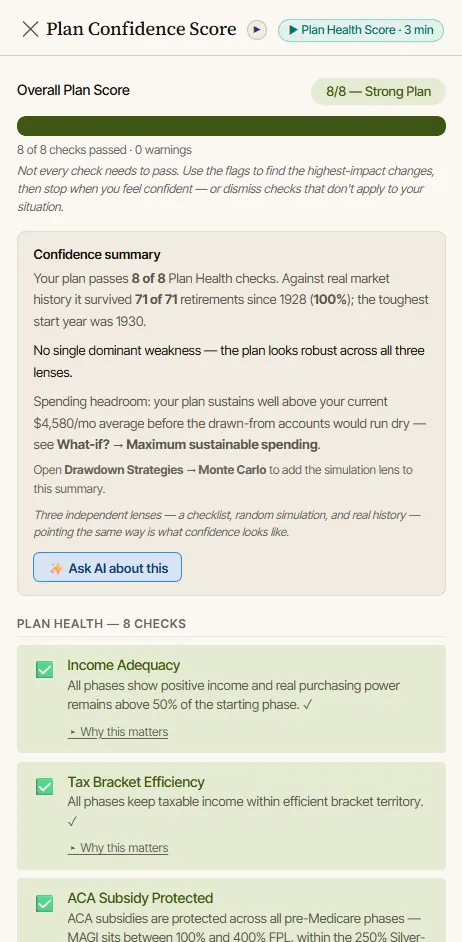
Before you enter enough plan information it reads Plan Health: —. Once the plan calculates, it fills in with a count and a label, like this:
Plan Health: 8/8 — Strong Plan
The first number is how many applicable checks pass. The second is how many checks apply to your plan. The label is the planner's summary of that ratio.
Clicking the badge opens the side panel, titled Plan Confidence Score. That panel is where the useful work happens. It shows the overall score, a confidence summary in plain sentences, every active check with its explanation, and ratings for six drawdown strategies.
The Overview tab also carries a slim confidence teaser showing your score out of 100. Clicking it opens the full Confidence tab rather than the side panel.
What Plan Health Is Checking
The planner has fourteen checks. Which ones apply depends on your plan.
They are grouped into four importance tiers, and the tier matters more than the color:
Essential. These decide whether the plan is viable at all.
- Income Adequacy
- Portfolio Survives to End
Recommended. These are resilience: the plan works, but it could take a punch better.
- Stress Test Resilient
- Income Floor Foundation
- Survivor Income Resilience
- RMD Compliance
Optimization. These are efficiency. A flag here usually means money left on the table, not a broken plan. They lean on the planner's tax and healthcare modeling, which is covered in more depth in best retirement calculator with taxes and healthcare.
- Tax Bracket Efficiency
- ACA Subsidy Protected
- IRMAA Not Triggered
- CSR / Subsidy Headroom
Optional. These only appear when you set that goal on the My Goals card.
- Income Goal
- Legacy Goal
Some checks only apply when the required inputs exist. That is why one plan shows fewer checks than another.
For example:
- Four checks (Tax Bracket Efficiency, ACA Subsidy Protected, IRMAA Not Triggered, and RMD Compliance) switch off when the currency is not USD, or when you have turned off the US taxpayer setting.
- Survivor Income Resilience needs Married-Filing-Jointly and "Model survivor scenario" ticked on the Edit tab.
- Income Goal and Legacy Goal need a target set on the My Goals card.
- CSR / Subsidy Headroom only speaks up when a pre-Medicare phase is sitting close to an ACA threshold.
Do not worry if your count differs from someone else's. Plan Health adapts to the plan you entered.
How To Read The Badge
The badge is a quick signal, and its label follows the pass ratio:
- Strong Plan when at least 75% of applicable checks pass.
- Good Foundation when at least 50% pass.
- Review Needed below that.
If you have accepted any flagged items, the badge appends a count, like 6/10 — Good Foundation (2 acknowledged).
The badge is useful for answering:
- Did my change improve the plan?
- Did my change create a new warning?
- Did a tax or healthcare threshold move?
- Are there unresolved items I should review?
But the badge is only the front door.
If the badge changes, open the panel and read the item that changed. A better count is useful only if you understand what improved. A lower count may be acceptable if it reflects a deliberate choice.
For example, a Roth conversion might make Tax Bracket Efficiency look better while pushing MAGI over an ACA or IRMAA threshold. The badge alerts you that something moved. The panel helps you decide whether the tradeoff is worth testing further.
Pass, Warning, Fail, And Not Applicable
Plan Health rows use icons, and they read in plain language:
- ✅ Pass: the plan clears that check under the current assumptions.
- ⚠️ Warning: the check is close enough to deserve attention.
- ❌ Fail: the check points to a risk or gap.
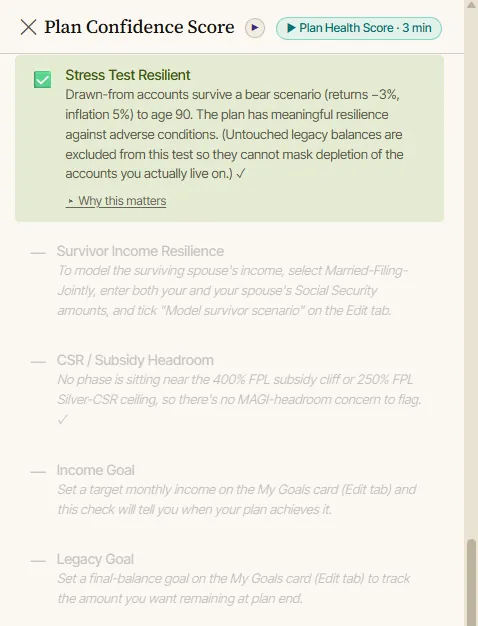
- — Not applicable: the check does not fit the current plan setup. The row is grayed out with a note explaining what to turn on.
- 🔕 Acknowledged: you reviewed a flagged item and accepted it for now.
Not applicable rows are not hidden. They stay visible and tell you what input would activate them, which is often the more useful message.
The most important habit is to read the explanation before changing numbers.
A warning is not always a crisis. A fail on an Optimization check is not the same as a fail on an Essential one. A pass is not proof that the future will unfold exactly as modeled.
Plan Health is strongest when it leads to better questions.
Use The "Why This Matters" Explanation
Each Plan Health item is easier to use when you expand the explanation.
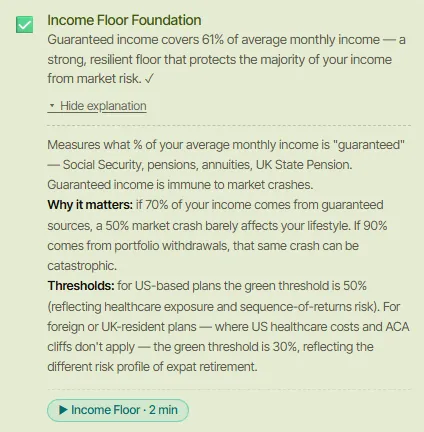
The explanation tells you what the check measures, why it matters in retirement, and the actual threshold being tested. Where a concept video exists, a watch button appears inside the expansion so you can learn the idea right where it is flagged.
This matters because two warnings can have very different meanings.
An IRMAA warning points to Medicare premium exposure. An Income Floor Foundation warning points to too much reliance on portfolio withdrawals. A survivor warning points to an income drop after the first spouse dies. A stress-test warning points to weak resilience under adverse assumptions.
The same color can represent very different planning questions.
The thresholds are specific, and worth knowing:
- Income Floor Foundation turns green when guaranteed income covers 50% of average monthly income. For foreign and UK-resident plans the green threshold drops to 30%, because US healthcare costs and ACA cliffs do not apply.
- Stress Test Resilient re-runs your plan with returns cut by 3 points and inflation at 5%, and checks whether the accounts you actually draw from survive to your end age.
- Survivor Income Resilience passes when the survivor's net income falls by less than 40%, unless you have set your own survivor goal, in which case it grades against your figure.
- Tax Bracket Efficiency warns when a phase reaches the 22% bracket ceiling and fails above $200k of taxable income.
Which Checks To Handle First
Work down the tiers. The planner ranks them for you, so use its order rather than inventing one:
- Essential first. Income Adequacy and Portfolio Survives to End. If either fails, nothing else matters much yet.
- Recommended next. Stress Test Resilient, Income Floor Foundation, Survivor Income Resilience, and RMD Compliance. These make a viable plan durable. RMD Compliance is worth treating as urgent when the shortfall is large, since the IRS penalty is real money.
- Optimization after that. Tax Bracket Efficiency, ACA Subsidy Protected, IRMAA Not Triggered, and CSR / Subsidy Headroom. These are usually worth real money, but a flag here does not mean the plan fails.
- Optional last. Income Goal and Legacy Goal, which only reflect targets you set yourself.
This order keeps the planning conversation grounded.
It is usually more important to know whether the plan can fund the household than to fine-tune a tax bracket. It is usually more important to protect a surviving spouse than to chase a slightly cleaner count.
One check behaves differently from the rest. CSR / Subsidy Headroom never shows a green pass. It is either not applicable, or it is warning you that a phase sits close enough to the 250% FPL Silver-CSR ceiling or the 400% FPL subsidy cliff that unplanned income could tip you over. Treat it as a proximity alert rather than a score item.
Drawdown Strategy Ratings
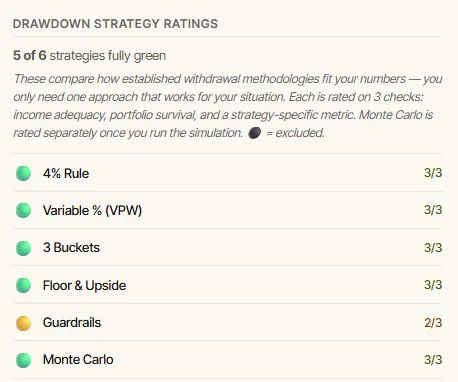
The Plan Health panel does one more thing that is easy to miss. Below the checks it rates six established withdrawal methodologies against your numbers: the 4% Rule, Variable % (VPW), 3 Buckets, Floor & Upside, Guardrails, and Monte Carlo.
Each strategy is scored on three checks: income adequacy, portfolio survival, and a metric specific to that strategy. Monte Carlo is rated separately once you run the simulation.
Strategies that do not suit your plan are excluded rather than failed. Three Buckets needs a Roth balance or a funded cash bucket. Floor & Upside needs guaranteed income covering at least 30% of your target. When a strategy is excluded, the panel tells you what would unlock it.
You only need one approach that works for your situation. A row of green ratings is not the goal.
Test One Change At A Time
Plan Health updates when the plan changes.
That makes it tempting to change several inputs at once. Resist that urge.
A cleaner workflow is:
- Save the current plan to one of the three plan slots, or export it to JSON.
- Pick one flagged item.
- Change one assumption.
- Recalculate.
- Open Plan Health.
- Review what changed.
- Keep, undo, or save as a scenario.
Examples:
- If Portfolio Survives to End fails, test lower withdrawals in one phase.
- If IRMAA Not Triggered fails, test a smaller Roth conversion, or move the conversion earlier.
- If ACA Subsidy Protected is flagged above the cliff, test substituting tax-free Roth or cash for 401k withdrawals before Medicare.
- If Survivor Income Resilience is flagged, test a delayed Social Security claim age.
- If Income Floor Foundation is weak, test delaying Social Security, which the check names as the easiest fix.
- If Stress Test Resilient fails, test lower early withdrawals or a larger cash buffer.
Some checks do the arithmetic for you. When an Income Goal falls short, the explanation names the phase, the shortfall, and roughly how much more to withdraw from that phase's 401k to close it. If no withdrawal from that account can reach the target, it says that too.
The goal is not to force every row green. The goal is to understand which changes make the plan stronger and which tradeoffs you accept.
How Plan Health Relates To Plan Confidence
Plan Health and Plan Confidence are related, but they are separate.
Plan Health is the checklist. Plan Confidence is the 0 to 100 score and dashboard built on top of it.
The score is calculated from the checks alone. Each applicable check earns full credit for a pass, half credit for a warning, and none for a fail. The average becomes the score. So a warning genuinely costs you half a check, and nothing else moves the number.
The Confidence tab adds four things the side panel does not:
- A completeness verdict (Needs work, Viable, or Complete) that is deliberately independent of the number. It reads the tiers instead. A failing Essential check means Needs work regardless of the score. When only Optimization and Optional items remain open, the verdict is Complete, because the remaining items are fine-tuning.
- Category sub-scores across Solvency, Income stability, Tax & healthcare, and Survivor & legacy, so you can see where the weakness sits.
- Three confirming lenses: the checklist, Monte Carlo, and a backtest against real market history. They run automatically the first time you open the tab, and on demand after that.
- An "Ask AI how to raise my score" button.
The lenses are worth understanding properly. Monte Carlo and the historical backtest do not change the headline score. They confirm it, or they disagree with it. That is the point: a checklist can catch threshold and planning issues, Monte Carlo shows sensitivity to random market and inflation paths, and backtesting shows how the plan would have behaved through past market sequences. The difference between those last two is worth understanding before you read the numbers, and it is covered in Monte Carlo vs historical backtesting for retirement planning.
When those lenses agree, the signal is stronger. When they disagree, the disagreement tells you what to investigate.
The panel also writes the summary for you, in sentences like "Your plan passes 8 of 8 Plan Health checks. Against real market history it survived 71 of 71 retirements since 1928 (100%); the toughest start year was 1930." It then names the main thing to watch, which is either your worst unacknowledged check or, if nothing is flagged, sequence-of-returns risk.
What To Do With An Acknowledged Check
The planner lets you accept a flagged check instead of fixing it.
Each failing or warning row carries an "I'm OK with this" button. Clicking it opens a short inline form asking for an optional one-line note, up to 120 characters, with an example like "large cash buffer covers the gap". The row then grays out with a 🔕 icon, shows your note back to you, and gains a Restore button if you change your mind.
Three things are worth knowing about how this behaves:
- It does not raise your score. Acknowledged checks still count as not passing, on purpose. The number stays honest.
- It cannot wave away an Essential check. The completeness verdict ignores acknowledgment for Essential items. Only Recommended gaps get resolved this way.
- It clears itself. If the underlying issue later resolves, the planner drops the acknowledgment automatically, so old notes do not linger on checks that now pass.
It also changes how the AI talks to you. Acknowledged checks are passed to the AI as reviewed and accepted, with an instruction not to lead with them or re-flag them as urgent problems.
Use this when a flag is real, but you have a reason to accept it for now:
- You knowingly hold more cash than the planner's default threshold expects.
- A custom legacy goal is aspirational rather than required.
- A temporary expense creates a short-term warning.
- You have outside resources that are not modeled in the plan.
Do not use acknowledgments to hide uncomfortable problems. Use them to document judgment.
The note field is one line, so keep it to the reason: "rental property not modeled here" beats a paragraph. If an item needs a professional's review, that belongs in your own notes rather than a 120-character field.
How Plan Health Works With AI
The planner includes optional AI assistance, and Plan Health is wired into it. If you have not set that up yet, using AI in the retirement planner covers the providers, models, and key handling.
Every failing or warning check has an "Ask AI about this" button that writes the prompt for you. It sends the check name, its status, its explanation, and your actual plan numbers, then asks the model to explain the flag and propose specific changes. You do not have to describe your situation from scratch. Once the answer comes back, how to use the AI co-pilot covers reviewing and approving what it proposes.
If you would rather type your own question, be specific. Instead of asking:
Is my retirement plan good?
Ask:
My Plan Health check for IRMAA is flagged. Explain what input is causing it and what scenarios I should test.
The Confidence tab has its own version: "Ask AI how to raise my score", which works from the whole dashboard rather than one row.
The planner's AI can explain results and propose changes, but the proposals arrive as suggestions you review and approve. AI should help you understand the Plan Health item, not make the final decision for you.
Plan Health Mistakes To Avoid
Avoid these common mistakes:
- Treating the count as a prediction.
- Chasing every green check without understanding tradeoffs.
- Treating an Optimization flag as seriously as an Essential one.
- Ignoring a warning because the overall badge looks good.
- Assuming a not-applicable check is broken rather than switched off.
- Changing several inputs at once.
- Expecting an acknowledgment to improve the score.
- Ignoring survivor income.
- Ignoring healthcare thresholds.
- Accepting a flagged item without writing why.
- Forgetting to update balances and assumptions each year.
The healthiest use of Plan Health is calm and methodical: read, test, compare, document.
Annual Review Workflow
Plan Health is also useful after the first plan is built.
Once per year, update:
- Current ages.
- Account balances.
- Cash reserves.
- Social Security assumptions.
- Pension assumptions.
- Healthcare premiums.
- Tax assumptions.
- Inflation assumptions.
- Spending goals.
- Major one-time expenses.
- Residency or currency assumptions.
Then:
- Recalculate the plan.
- Open Plan Health.
- Review new warnings.
- Open the Confidence tab.
- Run the scenario tools that matter.
- Export or print an updated report.
The planner's own report includes an annual review checklist along the same lines, including re-fetching current tax rates from the Edit tab. If you have retired since the last review, the Replan button re-anchors the plan to your real current age and balances first.
FAQ
What is Plan Health in the AI Retirement Income Planner?
Plan Health is the planner's built-in checklist for reviewing retirement plan risks and constraints. It has fourteen checks covering income, taxes, healthcare thresholds, portfolio survival, RMDs, income floor, stress resilience, survivor income, and your own goals. Only the checks that fit your plan apply.
Is Plan Health the same as the Plan Confidence score?
No. Plan Health is the checklist. Plan Confidence is a 0 to 100 score calculated from those checks, shown on a dashboard alongside a completeness verdict, category sub-scores, and Monte Carlo and historical backtesting lenses.
Does every Plan Health check need to pass?
No. The checks are tiered by importance. Essential checks decide viability, Recommended checks are resilience, Optimization checks are efficiency rather than failure, and Optional checks only apply when you set that goal. The planner reports a plan as Complete when only Optimization and Optional items remain open.
Why does my Plan Health count differ from someone else's?
Plan Health adapts to the plan. Five US-specific checks switch off for non-USD or non-US-taxpayer plans. Survivor and goal checks only appear when you configure them. Checks that do not apply are marked not applicable and are excluded from the count.
What should I do first if Plan Health flags a problem?
Open the side panel and start with any Essential check that is failing. Read the row, expand "Why this matters" for the threshold behind it, then test one change at a time. Compare the result before making the change part of the plan.
Does acknowledging a check improve my score?
No. Acknowledged checks still count as not passing, so the score stays honest. Acknowledgment records that you reviewed the item and accepted it, grays the row, keeps your note, and tells the AI not to re-flag it. Essential checks cannot be resolved this way.
Can AI help explain Plan Health?
Yes. Every failing or warning check has an "Ask AI about this" button that sends the check, its explanation, and your plan numbers, and asks for specific fixes. The Confidence tab has an equivalent button for the overall score. You still review the math and decide which changes to keep.
Source Links
- IRS required minimum distributions: https://www.irs.gov/retirement-plans/retirement-plan-and-ira-required-minimum-distributions-faqs
- IRS retirement topics on required minimum distributions: https://www.irs.gov/retirement-plans/plan-participant-employee/retirement-topics-required-minimum-distributions-rmds
- HealthCare.gov federal poverty level and savings: https://www.healthcare.gov/lower-costs/
- HealthCare.gov cost-sharing reductions: https://www.healthcare.gov/glossary/cost-sharing-reduction/
- Medicare Part B costs and IRMAA: https://www.medicare.gov/basics/costs/medicare-costs
- Social Security benefits planner: https://www.ssa.gov/benefits/retirement/planner/agereduction.html
- AI Retirement Income Planner: https://airetirementincomeplanner.com/
Educational Disclaimer
This article is for general education only. It is not financial, tax, investment, legal, healthcare, insurance, Social Security, Medicare, estate, AI safety, software, or retirement advice. Planner results depend on user inputs and assumptions, and real-world outcomes can differ.