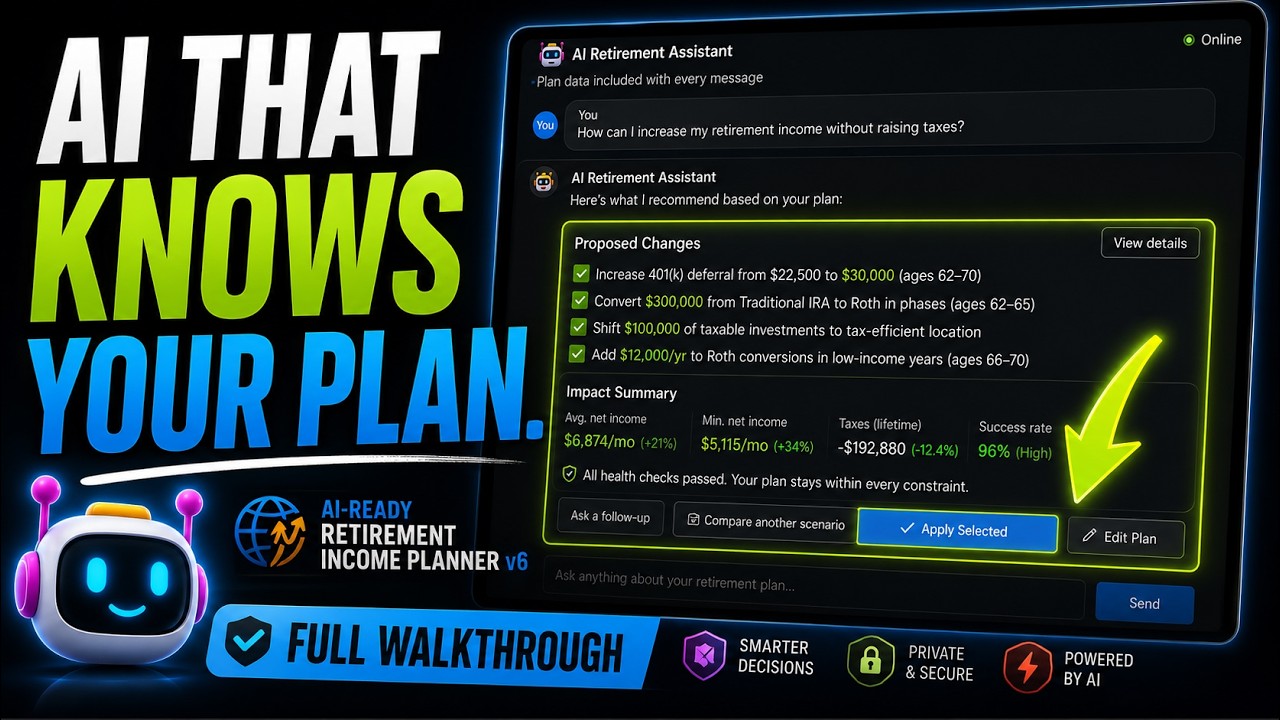
Quick Answer
The planner's AI Chat tab is not a blank box you have to know what to type into. It comes with six one-click prompts, each a carefully written question that automatically includes your entire plan as context. Click one and the AI reads every phase, balance, withdrawal, and tax figure in your plan, then answers about your numbers rather than in generalities.

Better still, when you ask for changes, the AI does not just talk. It returns a proposed-changes panel with exact field edits: you tick the ones you want, click apply, and your plan recalculates. This guide walks through what each of the six prompts does, when to use it, how to apply the proposals safely, and how to use the AI even without an API key. If you have not set AI up yet, the guide on using AI in the planner covers providers and keys, and the AI co-pilot walkthrough covers the two AI surfaces in general.
Key Takeaways
- Every prompt includes your whole plan. The AI is not guessing; it reads your actual phases, balances, and tax figures automatically.
- Six prompts cover the big questions. Risk summary, tax bracket, ACA, withdrawal strategy, optimizations, and Roth conversions, each a single click.
- Proposals are apply-with-one-click, but always yours to approve. The AI returns exact edits; you tick which to keep and apply them. Nothing changes until you say so.
- Some goals trade off against each other. You often cannot optimize for both ACA subsidies and tax efficiency at once, and the AI will show you the choice rather than making it for you.
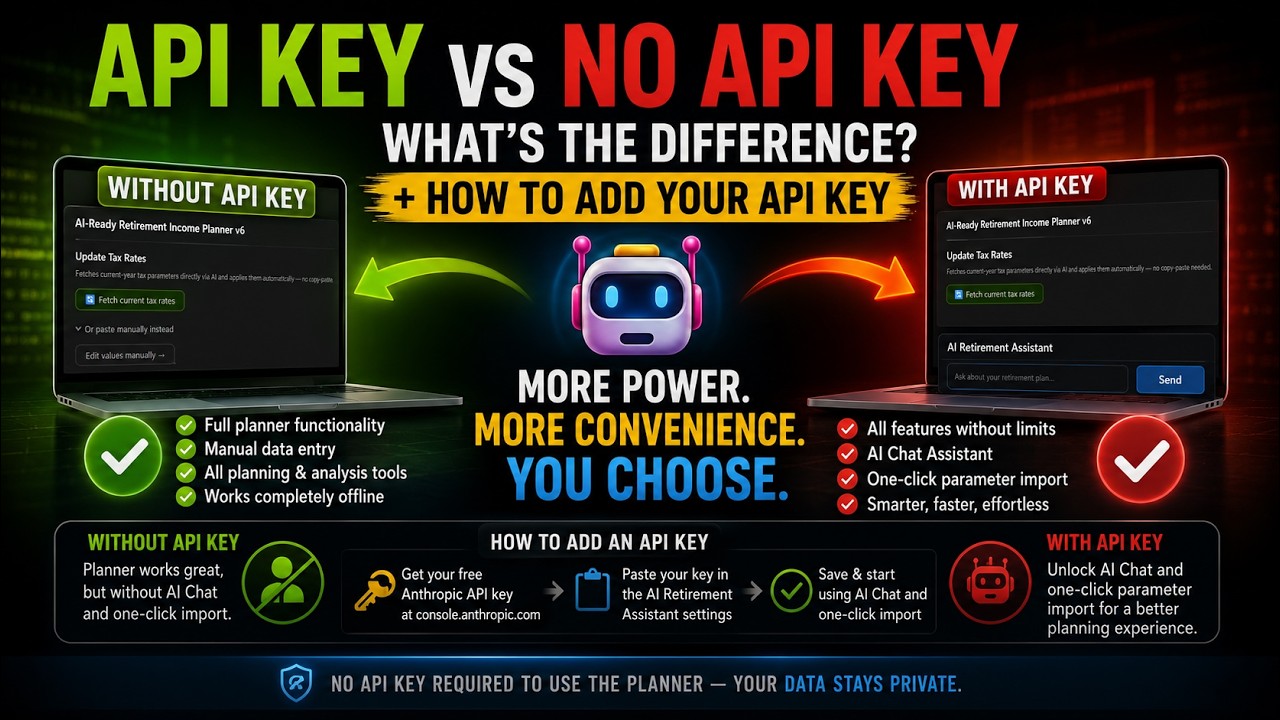
- You do not need an API key to benefit. A copy-and-paste prompt sends your plan summary to any external AI assistant.
How the Prompts Work
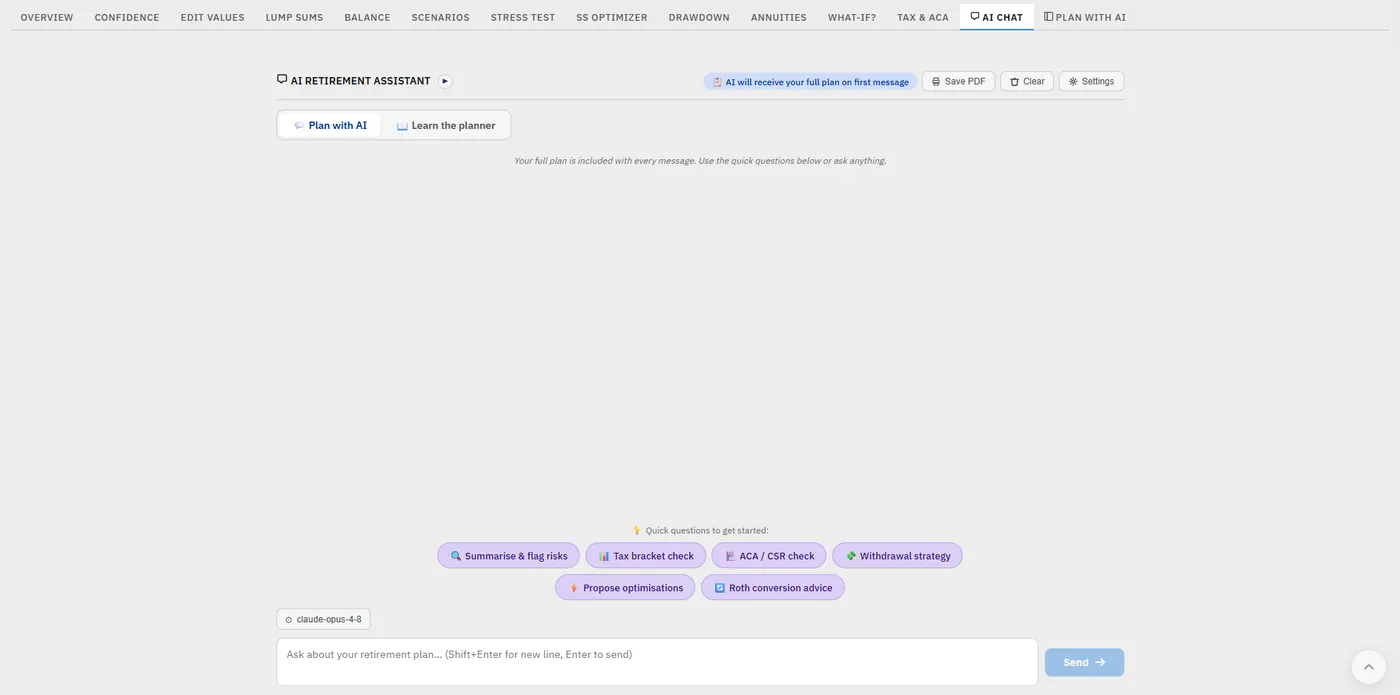
The six buttons sit under the chat box in the AI Chat tab. What makes them powerful is that each one automatically attaches your complete plan, all the phases, every balance and withdrawal, your tax parameters, so the AI is reading your real situation, not a generic example.
Using the built-in AI Chat requires your own API key from a supported provider (a few cents per conversation), which the AI setup guide covers. If you would rather not connect a key, skip to the copy-and-paste method at the end, which works in every version. Either way, the AI is plan-aware: it knows your dollar headroom to the next tax bracket, the IRMAA threshold, and the ACA cliff, and it treats your passing Plan Health checks as constraints it should not break.
Writing Your Own: The Five-Part Formula
The six buttons cover the common questions. When you want to ask something they do not, the prompts that work follow the same shape, and it is worth knowing because it is the difference between a useful answer and a confident guess.
Give the AI five things: the role it is playing, the context of what you are comparing, the planner output itself, the task, and the limits on what it may conclude.
Role: Use AI for education and scenario review only.
Context: I am comparing [scenario A] and [scenario B].
Planner output: [paste the calculated summary]
Task: Explain what changed and why.
Limits: Do not choose for me. List the assumptions I should verify through official sources or a qualified professional.
The last part is doing more work than it looks. Without it, an AI asked a retirement question will happily supply the numbers you did not give it. Naming the limits is what turns the answer into something you can check.
The Six Prompts, One by One
Summarize & flag risks
This is your start-every-session prompt. It gives a 60-second sanity check: the AI summarizes what your plan is doing and flags the top three or four things worth worrying about. You will often discover risks you did not know were there. Begin here, then dig into specifics with the others.
Tax bracket check
Answers one question with precision: in every phase, am I staying inside the 12% bracket, and if not, by how much? The AI reports your headroom phase by phase, which is exactly the information you need to decide whether to do a Roth conversion or take an extra 401(k) withdrawal while the low brackets have room.
ACA / CSR check
For anyone retiring before 65, this is the prompt that prevents expensive mistakes. It tells you, phase by phase, whether you are eligible for premium subsidies and cost-sharing reductions, and how close you are to the 400% federal poverty level cliff. It connects directly to the mechanics in taxes, ACA, and healthcare in early retirement.
Withdrawal strategy
Asks the AI to look at how you draw across all phases, 401(k) versus cash versus Roth versus brokerage, and suggest improvements to tax efficiency and account-depletion timing. Most retirees get one of those right and miss the other; the AI is asked to consider both at once.
Propose optimizations
This is the action prompt. It proposes specific numeric changes to optimize your plan, aiming to keep you in the 12% bracket and preserve ACA cost-sharing eligibility where possible. Its output is what feeds the proposed-changes panel described below.
Roth conversion advice
Answers the question many retirees eventually reach: should I convert, in which phases, and how much? The AI sizes conversions to fill a bracket without spilling into the next one, respecting every cliff and threshold, and returns phase-specific dollar amounts you can apply. For a deeper treatment, the planner also has a dedicated Roth conversion tool.
Applying the AI's Proposed Changes
When a prompt returns changes, they arrive as a proposed-changes panel: a list of exact field edits, each with a checkbox.
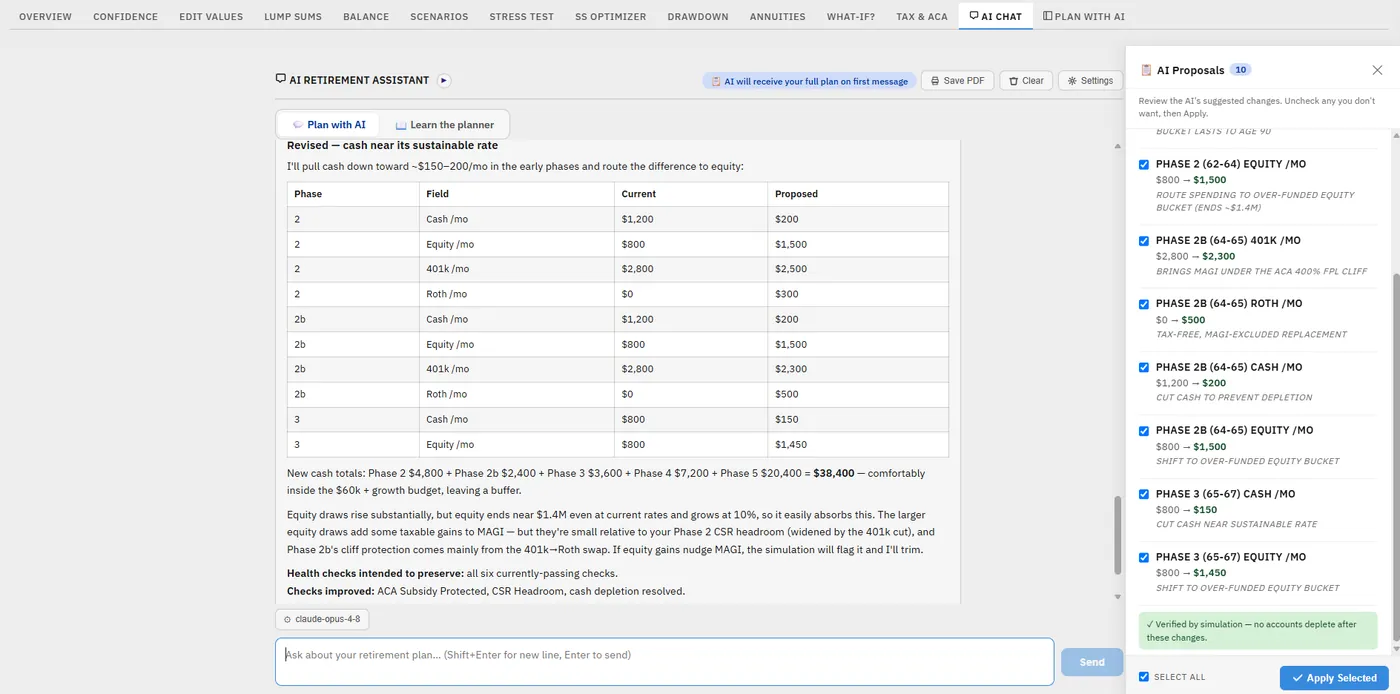
The workflow is simple and safe:
- Read the proposals. Each one names the phase and the exact change, and the panel confirms which Plan Health checks it preserves.
- Tick the ones you want, untick the rest. You are never forced to take all of them.
- Click apply selected. The plan recalculates immediately with only the changes you approved.
This is the heart of the design: the AI can propose, but you approve. Every proposal is dry-run through the planner's own calculation engine before it is applied, so the numbers you see are the planner's, not the AI's guesswork. The user-approved proposal workflow is covered in more depth in the co-pilot guide.
The Trade-Off the AI Will Show You
One of the most valuable things the AI does is surface a choice rather than pretend there is a single right answer. A common example: in the pre-Medicare phases you often cannot both fill your low tax brackets and keep your income low enough for the best ACA cost-sharing reductions. Withdrawing more to use cheap bracket space raises your MAGI and can cost you the subsidy.
When this comes up, the AI lays out both paths, more tax arbitrage versus more ACA benefit, and tells you it is a decision only you can make based on your expected medical costs and priorities. That honesty is the point. A tool that quietly optimized one and silently sacrificed the other would be doing you a disservice. Here, you see the fork and choose.
Ask Your Own Questions, and the AI Keeps Up
You are not limited to the six buttons. You can type any question: "What is my effective tax rate in each phase?" or "What happens if my 401(k) grows at 4% instead of 7%?" The AI answers against your real plan.
And if you change your plan after asking something, the chat notices. It shows a note that the plan has been updated and will be included in your next reply, and once you send that message it confirms the AI is up to date with your plan. So you can ask, adjust a number, ask again, and trust that the AI is always reasoning about your current plan rather than a stale copy. This makes a natural loop: ask, adjust, re-check, improve.
No API Key? Use the Copy-and-Paste Prompt
If you prefer not to connect an API key, or you are using a version without the built-in chat, the planner still gives you an AI-ready prompt. It builds a prompt containing your plan's key figures that you copy and paste into any AI assistant, such as Claude, ChatGPT, or Gemini.

A good question to paste alongside it:
Review my withdrawal strategy, identify any optimization opportunities, flag risks I may have missed, and tell me whether my assumptions look realistic. Do not choose for me; explain the trade-offs.
The AI reads your plan summary and returns feedback on what you are doing well and what could be improved. You then take the suggestions back to the planner, enter the changes yourself, and recalculate. It is a few more steps than the one-click flow, but it needs no key and works with whichever AI you already use.
FAQ
Do the AI prompts see my actual plan or just general information?
Each of the six prompts automatically attaches your complete plan, every phase, balance, withdrawal, and tax parameter, so the AI answers about your real numbers, not a generic example. It even knows your exact headroom to the next tax bracket, the IRMAA threshold, and the ACA cliff, and treats your passing Plan Health checks as constraints.
Will the AI change my plan on its own?
No. The AI proposes changes as a panel of exact edits with checkboxes. You choose which to keep and click apply; nothing changes until you approve it. Every proposal is run through the planner's own calculation engine first, so the resulting numbers are the planner's, not the AI's estimate.
Which prompt should I start with?
Start with "Summarize & flag risks" for a 60-second sanity check on the whole plan. Then use the more specific prompts, tax bracket check, ACA/CSR check, withdrawal strategy, to dig into anything it surfaced, and "Propose optimizations" or "Roth conversion advice" when you want concrete changes you can apply.
Why does the AI refuse to just tell me the single best plan?
Because some goals genuinely trade off against each other. In early retirement you often cannot both fill low tax brackets and keep income low enough for the best ACA cost-sharing, since more withdrawals raise your MAGI. The AI shows you both paths and the trade-off rather than silently sacrificing one, because the right choice depends on your priorities. It is educational assistance, not advice.
Can I use the AI features without paying for an API key?
Yes. The built-in AI Chat needs your own key (a few cents per conversation), but the planner also generates a copy-and-paste prompt containing your plan summary that you can paste into any free or paid AI assistant you already use. The core planner and all its calculations work with no key at all.
Source Links
- OpenAI, ChatGPT Help and FAQ: https://help.openai.com/en/articles/6783457-what-is-chatgpt
- Anthropic, Claude Documentation: https://docs.anthropic.com/
- Investor.gov, Protect Your Money From Fraud: https://www.investor.gov/protect-your-investments
- AI Retirement Income Planner: https://airetirementincomeplanner.com/
Educational Disclaimer
This article is for general education only. It is not financial, tax, investment, legal, healthcare, Social Security, Medicare, estate, or retirement advice. It does not provide personalized recommendations. The AI features provide educational assistance and plan review, not advice, and AI output can be incomplete or wrong and must be reviewed. Projections are estimates based on the assumptions entered. Consult qualified professionals before making significant financial decisions.