
Short Answer
Use the AI Co-Pilot after the planner has calculated something specific. Ask it to explain a Plan Health item, compare two saved plans, summarize a report, identify missing assumptions, or suggest a change to test. If it proposes a change, review it yourself and run the planner before accepting the idea.
The safest workflow is calculator first, AI explanation second, user approval third.
Key Takeaways
- AI features are optional.
- Cloud AI use requires your own API key.
- Local Ollama can be used without a cloud API key.
- AI keys are stored in your browser according to the selected key-storage mode.
- AI Chat is useful for plan questions, plan review, Learn-the-planner mode, and proposal workflows.
- Plan with AI is useful when you want AI beside the tab you are using.
- User-approved AI proposals should be reviewed before they affect the plan.
- AI commentary in reports should be checked before saving or sharing.

What The AI Co-Pilot Is For
The AI Co-Pilot is for explanation, review, and structured planning support. It is the practical companion to how an AI co-pilot can explain a retirement plan.
It can help you ask better questions about:
- Plan Health checks.
- Plan Confidence.
- Scenario differences.
- Tax changes.
- Healthcare costs.
- Social Security timing.
- Roth conversion scenarios.
- RMD pressure.
- Survivor assumptions.
- Annuity income.
- Stress Test results.
- Monte Carlo and historical backtesting.
- Report notes.
It should not be treated as the source of truth. The planner's calculations, official sources, contract documents, account records, and professional review still matter.
The Two Main AI Surfaces
The planner has two main AI surfaces:
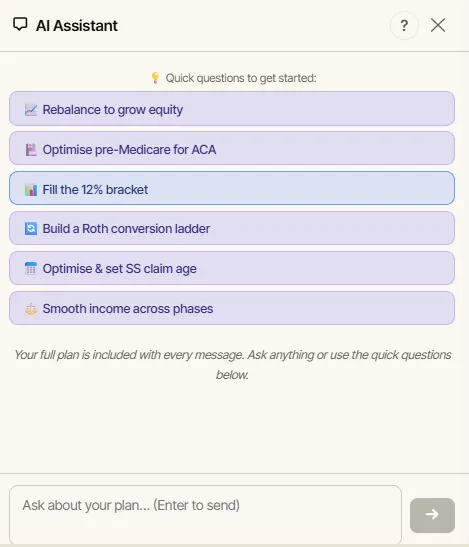
- The AI Chat tab.
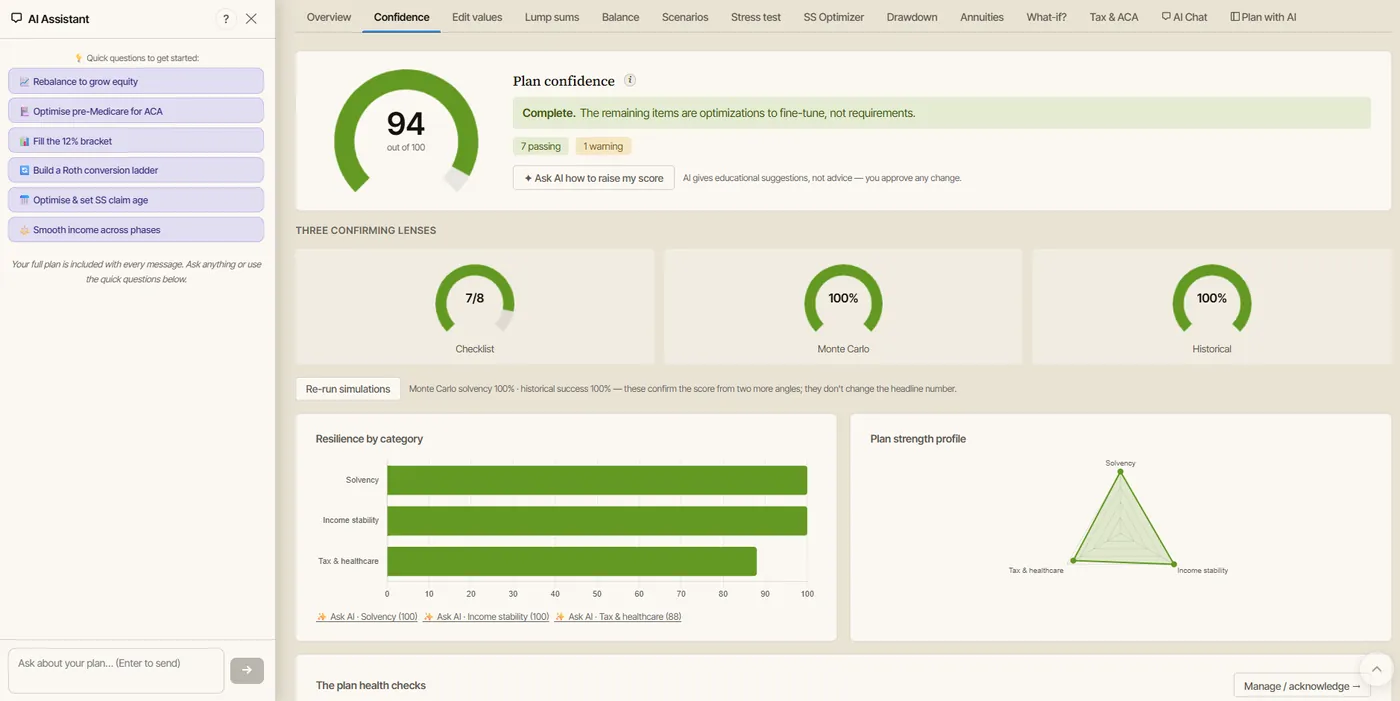
- The Plan with AI sidebar.
Both live in the tab row at the top of the planner, and both use the same API key. Use AI Chat when you want a focused conversation about the plan, a report, a scenario, or a learning question.
Use Plan with AI when you want help while working beside a specific planner tab.
In practical terms:
- AI Chat is good for review and explanation.
- Plan with AI is good for tab-by-tab work.
Before You Turn On AI
Before configuring AI, decide what setup you want. The walkthrough on using AI in the retirement planner covers choosing a provider and storing your key.
The planner's AI setup works like this:
- Cloud AI providers require your own API key.
- Ollama can run locally without a cloud API key.
- Your AI key is user-supplied and stored in your browser according to the key-storage mode you choose.
If you use a cloud AI service, assume the prompt content you send to that service leaves the browser and is handled under that service's terms and data controls. If privacy is your main concern, review your provider settings and consider whether local Ollama better fits the task.
Before using AI with sensitive information, follow the basics of how to use AI safely for retirement planning:
- Remove details that are not needed.
- Avoid names, account numbers, passwords, and identifying notes.
- Use rounded numbers if exact numbers are not required.
- Review the selected key-storage mode.
- Review the AI provider's data settings.
- Decide whether the question really needs AI.
OpenAI's own help content says model outputs may be inaccurate or misleading at times. Investor.gov also warns readers to be cautious with AI-generated investment information.
The Best First Prompt
Start with a narrow prompt.
Instead of:
What should I do with my retirement plan?
Use:
Explain why this Plan Health item is flagged. Use only the planner output shown here. List the assumptions I should verify before changing anything.
That kind of prompt keeps the AI grounded, especially once you know how to use Plan Health and can name the exact check.
Better prompts ask AI to:
- Explain.
- Summarize.
- Compare.
- Identify missing assumptions.
- Create a checklist.
- Suggest scenarios to test.
- Prepare questions for a professional.
Weaker prompts ask AI to:
- Pick a claiming age.
- Choose a Roth conversion amount.
- Decide whether to buy an annuity.
- Tell you when to retire.
- Replace a tax professional.
- Replace official Social Security or Medicare sources.
How To Use AI Chat
Use this workflow:
- Update the planner inputs.
- Run the plan.
- Review Plan Health and Plan Confidence.
- Open AI Chat.
- Ask one specific question.
- Ask for assumptions to verify.
- Ask what scenario to test next.
- Make changes in the planner, not in the chat.
- Rerun the planner.
- Compare the result.
Good AI Chat prompts:
Explain why Plan Confidence changed after I delayed Social Security.
Summarize the difference between Scenario A and Scenario B. Focus on withdrawals, taxes, healthcare, and survivor years.
List the assumptions that would most affect this Roth conversion scenario.
Turn this report preview into five questions for my tax professional.
Explain the Stress Test result without suggesting a final decision.
The point is to keep AI in the explanation lane.
How To Use Plan With AI
Plan with AI is useful when you are already inside the planner and want help with a specific tab.
Use it when you are working on:
- Tax & ACA.
- SS Optimizer.
- Scenarios.
- Plan Health.
- Confidence.
- Report preview.
- Replan From Today.
- Roth conversion What-if.
- Survivor scenario.
- Maximum sustainable spending.
A strong Plan with AI workflow looks like this:
- Open the tab you are working on.
- Ask AI to explain the current result.
- Ask what input might be driving the result.
- Ask for one change to test.
- Review the proposed change.
- Approve only if it matches your intent.
- Rerun the planner.
- Compare before and after.
Use the phrase "test" often. A tested scenario is safer than an unreviewed instruction.
User-Approved AI Proposals
"User-approved AI proposals" is the right mental model for Plan with AI.
The AI can draft a proposed change, but you review it before it affects the plan. In the planner, a proposal arrives as a card you can inspect and then apply with one click, so nothing touches your numbers until you approve it.
Examples:
- Test retiring one year later.
- Test a smaller annual Roth conversion.
- Test delaying Social Security.
- Test lower travel spending for five years.
- Test adding fixed annuity income.
- Test a survivor-income scenario.
- Test a different healthcare inflation assumption.
Before approving a proposal, ask:
- What exact input will change?
- What value will it change from and to?
- Which years are affected?
- Is this a test or a real plan update?
- Does it change taxes, healthcare, Social Security, RMDs, or survivor assumptions?
- Can I save a baseline first?
Approve only changes you understand.
How To Use AI Commentary In Reports
The Report preview has an optional "Include AI commentary" toggle, grayed out until an API key is saved in the AI Chat tab. When you turn it on, the planner generates a plain-English commentary you can review and edit in place before printing the report or saving it as a PDF.
Use it to make a report easier to read.
Ask AI to:
- Summarize the plan.
- Explain the most important risk flags.
- List assumptions to verify.
- Compare the base plan with one scenario.
- Draft questions for a professional.
- Translate technical terms into plain English.
Then review the commentary before printing or saving the report.
Look for:
- Wrong numbers.
- Missing caveats.
- Confused scenario names.
- Overconfident language.
- Tax or Medicare claims that need verification.
- Suggestions that have not been tested.
AI commentary should make the report clearer, not more authoritative.
Example Workflow
Imagine you are testing a Roth conversion.
You run a no-conversion baseline. Then you test a $40,000 conversion.
Plan Confidence improves slightly, but the Tax & ACA tab shows higher income during the conversion year.
You open AI Chat and ask:
Compare the no-conversion and $40,000 Roth conversion scenarios. Explain what changed in taxes, ACA-sensitive income, RMD pressure, balances, and survivor years. Do not tell me what to do. List assumptions I should verify.
The AI response gives you a plain-English review.
Then you ask:
Suggest two smaller conversion amounts to test and explain why those tests might be useful.
You save the baseline, test each amount in the planner, and review the output yourself.
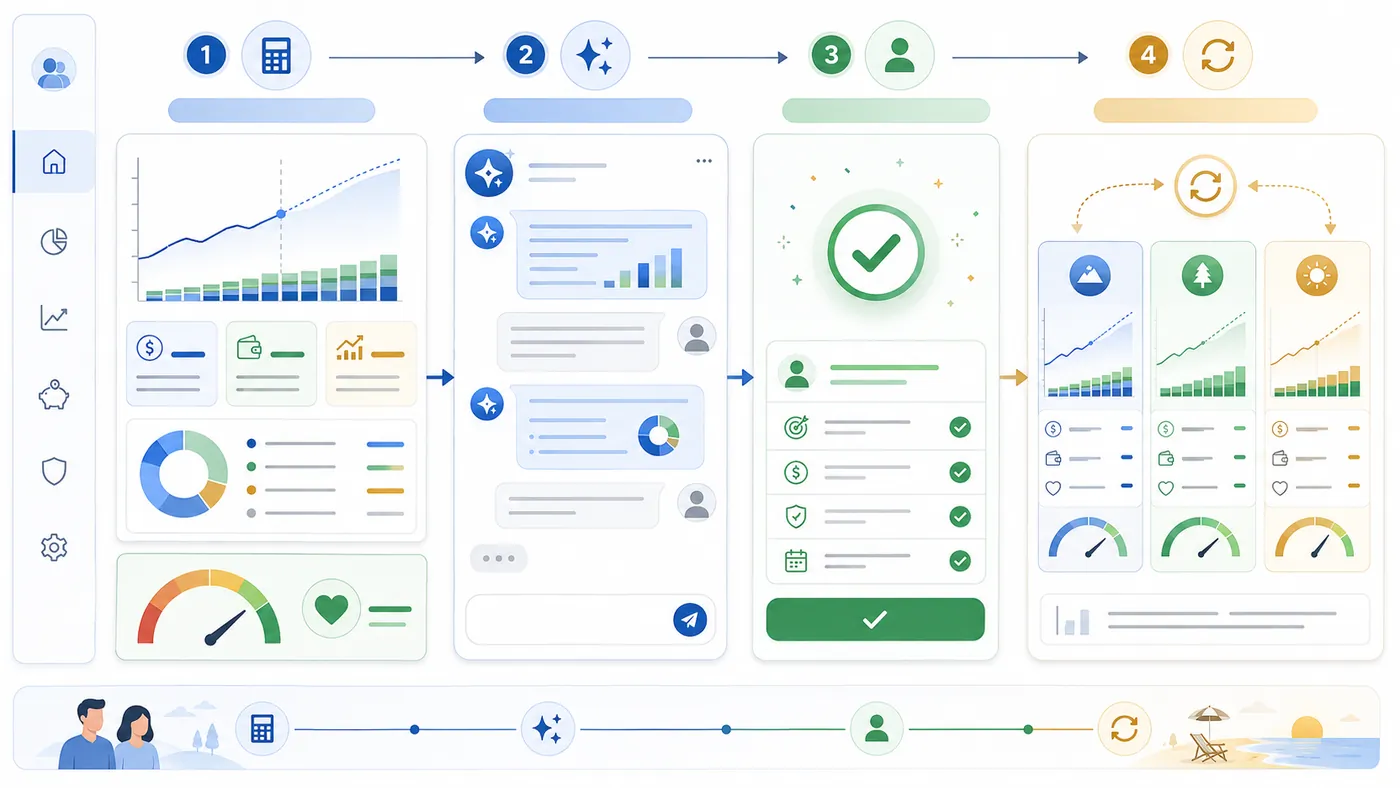
That is the correct rhythm: calculate, explain, test, review.
Common Mistakes
Avoid these mistakes:
- Asking AI to make the final decision.
- Using AI before the planner has calculated a result.
- Sending unnecessary personal details to a cloud model.
- Forgetting to save a baseline.
- Approving a proposal without reading the exact changes.
- Asking broad questions with missing inputs.
- Treating AI commentary as verified tax or Medicare guidance.
- Letting AI make weak results sound comfortable.
- Forgetting to rerun Plan Health after a change.
- Forgetting to compare scenarios.
The AI Co-Pilot is useful because it works beside the planner. Keep it there.
Prompt Templates
Use these prompts as starting points.
Plan Health
Explain this Plan Health item in plain English. Identify which inputs may be driving it and list three scenarios I could test. Do not make a final decision for me.
Scenarios
Compare Scenario A and Scenario B. Focus on income, withdrawals, taxes, healthcare, balances, survivor years, Plan Health, and Plan Confidence.
Tax
Explain why taxable income changed in this scenario. List IRS or professional-review questions I should verify before acting.
Social Security
Explain how this claiming-age change affects withdrawals, taxes, survivor income, and Plan Confidence. Use the planner output as the source.
Report
Summarize this report preview for a spouse or professional. Separate confirmed assumptions from items that still need verification.
FAQ
Is the AI Co-Pilot required?
No. The planner's AI features are optional.
What is the difference between AI Chat and Plan with AI?
AI Chat is best for focused questions, plan review, Learn-the-planner mode, and proposal workflows. Plan with AI is designed to work beside any planner tab.
Can the AI Co-Pilot change my plan?
Use user-approved AI proposals. Review the exact change before approval, then rerun the planner and compare results.
Does cloud AI require an API key?
Yes. Cloud AI providers require your own API key. Local Ollama can be used without a cloud API key.
Can AI replace professional review?
No. Use AI for explanation, organization, and scenario ideas. Verify important details with official sources and qualified professionals.
Source Links
- AI Retirement Income Planner: https://airetirementincomeplanner.com/
- WebNomad AI Retirement Income Planner feature page: https://webnomad.webflow.io/pages/ai-ready-retirement-income-planner
- OpenAI ChatGPT FAQ: https://help.openai.com/en/articles/6783457-chatgpt-general-faq
- OpenAI Data Controls FAQ: https://help.openai.com/en/articles/7730893-data-controls-faq
- Investor.gov Artificial Intelligence and Investment Fraud alert: https://www.investor.gov/introduction-investing/general-resources/news-alerts/alerts-bulletins/investor-alerts/artificial-intelligence-fraud
- Investor.gov retirement planning resources: https://www.investor.gov/introduction-investing/investing-basics/glossary/retirement-planning
Educational Disclaimer
This article is for general education only. It is not financial, tax, investment, legal, healthcare, insurance, Social Security, Medicare, estate, privacy, cybersecurity, AI safety, software, or retirement advice. AI tools can produce incorrect, incomplete, outdated, or persuasive-sounding responses. Confirm tax, Medicare, Social Security, RMD, withdrawal, investment, insurance, healthcare, inflation, estate, privacy, cybersecurity, AI, and software details with official sources and qualified professionals.