
Quick Answer
The AI Retirement Income Planner includes an optional AI assistant that can read your plan, answer questions, and even propose specific numeric changes you approve with one click. It is a "bring your own key" feature: you pick an AI provider, paste in your own API key, and the planner talks to that provider directly from your browser.
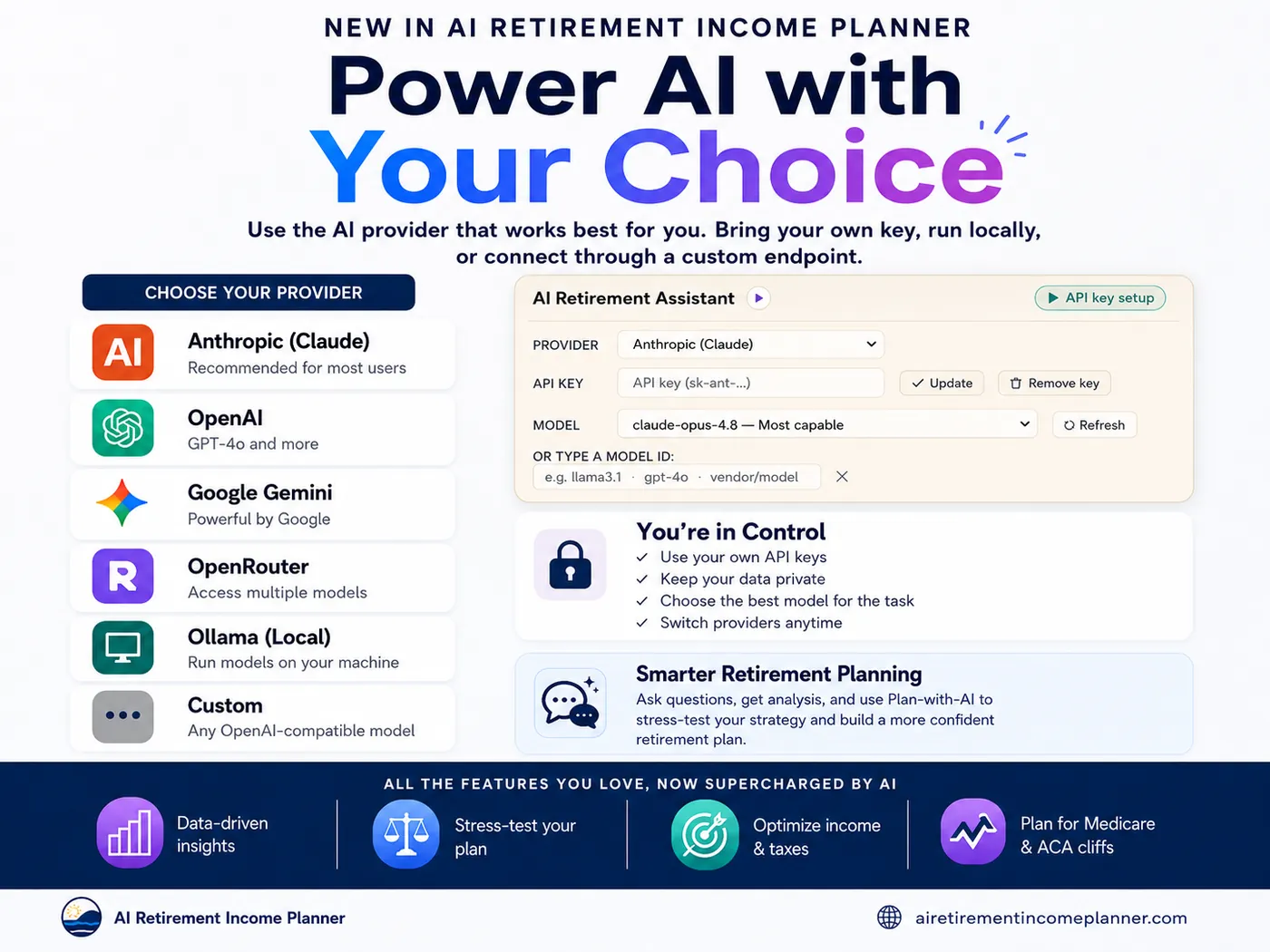
You are not locked into one provider. The planner supports:
- Anthropic (Claude)
- OpenAI
- Google Gemini
- OpenRouter
- Ollama (local models on your own computer)
- Custom (any OpenAI-compatible endpoint)
For serious plan analysis and the change proposals, Claude Opus 4.8 or Claude Fable 5 are the recommended models, because the planner's AI prompts and proposal format were developed and tuned against Claude during development. For the lighter "Learn the planner" how-to chat, smaller or local models, including free local models in Ollama, work well and cost nothing to run.
The rest of this guide explains the two AI modes, each provider's strengths and weaknesses, how to select a model, how to add and protect your API key, and how to get a Claude key step by step.
The Two AI Modes: Plan With AI and Learn the Planner
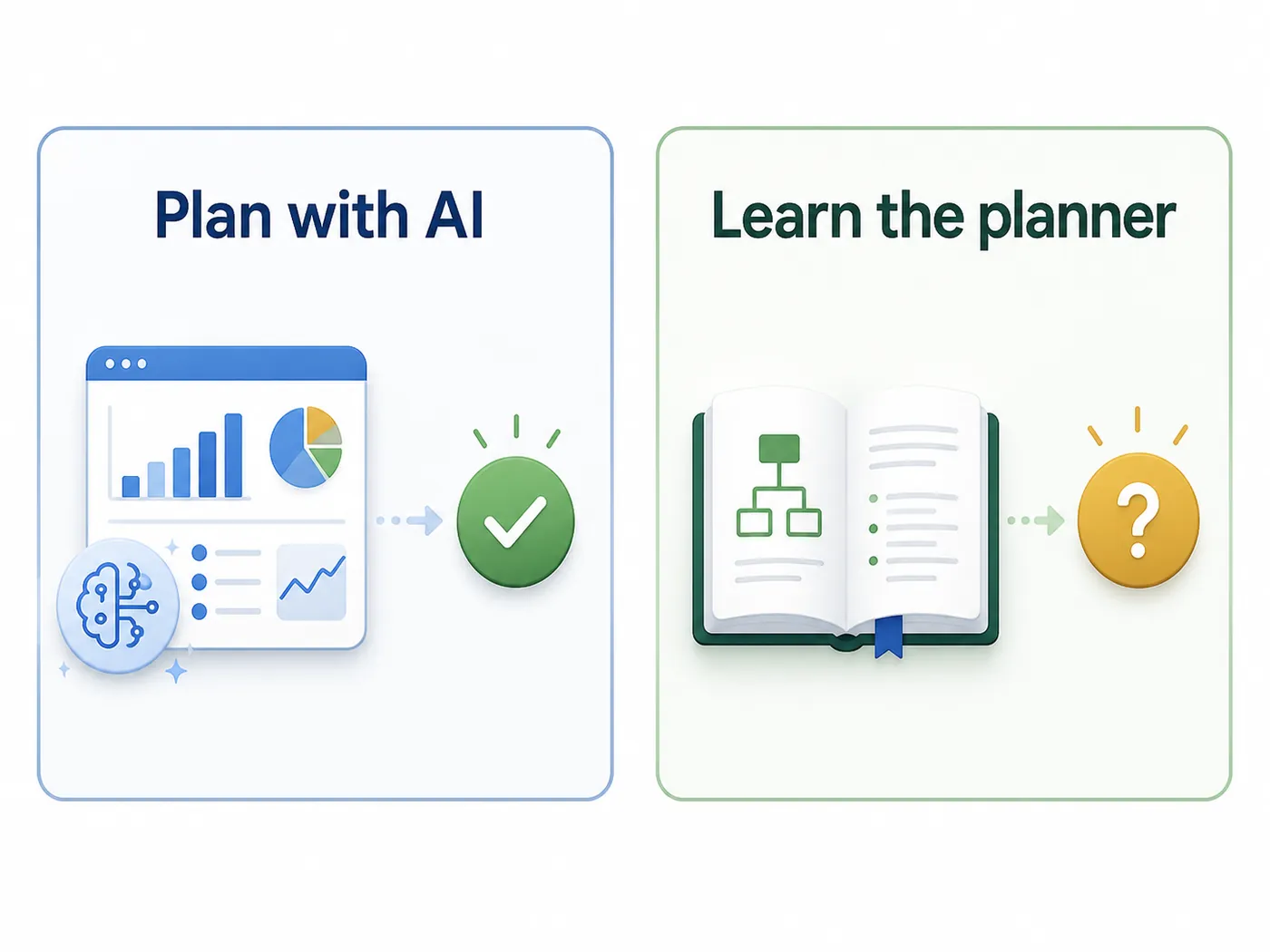
The AI Chat tab has two different modes, and it helps to know which one you are in.
Plan with AI works on your real plan. You ask for changes in plain English, and it returns specific numeric edits to your withdrawals, tax strategy, Roth conversions, and phase structure. Every proposed change set is checked against the simulation, so the AI always has a real retirement calculator underneath it, and you review and approve it (or undo it) with one click. This is the mode that benefits most from a capable model.
Learn the planner is a grounded "how do I use this?" chat. It answers questions about the planner itself, such as where to set a claiming age or what an ACA cliff warning means, using the app's own help content. It can even hand a drafted question over to Plan mode for you. Because it is mostly explaining the tool rather than doing heavy analysis, it runs fine on cheaper or local models.
A simple rule of thumb: use a strong model (Claude Opus 4.8 or Fable 5) when you want the AI to analyze and change your plan, and a cheaper or local model when you just want help using the planner. Either way, this is different from pasting your numbers into a general chatbot; can ChatGPT help with retirement planning? covers where a chatbot helps and where it should not.
Bring Your Own Key: How Your Data Is Handled
The planner does not run its own AI server. Instead, your API key is stored only in your browser, and your requests, including the plan figures the AI needs, are sent directly from your browser to the provider you chose. Nothing passes through a middle server run by the planner.
That has two consequences worth understanding:
- You pay the provider directly for what you use, at that provider's rates. There is no markup and no subscription to the planner for AI.
- Your plan figures (balances, ages, and tax inputs) are shared with the provider you selected, under your own account and their privacy terms. If that matters to you, read on to the Ollama option, which keeps everything on your own machine.
The AI Providers, and Their Strengths and Weaknesses
Here is how the six options compare.
| Provider | Get a key from | Best for | Watch-outs |
|---|---|---|---|
| Anthropic (Claude) | console.anthropic.com | Plan analysis and change proposals; the recommended default | Paid usage; needs billing credits |
| OpenAI | platform.openai.com | General-purpose chat and analysis | Paid usage; quality varies by model |
| Google Gemini | aistudio.google.com/apikey | Low-cost analysis; has a free tier | Free tier has limits; quality varies |
| OpenRouter | openrouter.ai/keys | One key, many models from different makers | You are trusting a router in the middle |
| Ollama (local) | No key needed | Private, free, offline "Learn the planner" chat | Limited by your own hardware; needs a little setup |
| Custom (OpenAI-compatible) | Your own endpoint | Advanced users with their own gateway or model host | A custom host may be blocked by the app's security policy |
A few notes on the ends of that range:
Anthropic (Claude) is the recommended choice for plan work. Within Claude, the model dropdown labels tell you the trade-off: Opus models are marked "Most capable," Sonnet models are "Balanced (faster)," and Haiku is "Fastest and cheapest." Claude Fable 5 also appears in the list. For proposing changes to your plan, pick Opus 4.8 or Fable 5.
Ollama is different from the rest. It runs open models on your own computer, so there is no API key and no cost, and your plan data never leaves your device. It is the most private option and a great fit for the "Learn the planner" chat. The trade-offs are that answer quality depends on your hardware, and it needs a small amount of setup (install Ollama, and start it so the browser can reach it, for example with the setting OLLAMA_ORIGINS=*).
OpenRouter and Custom are flexibility options. OpenRouter gives you one key that can reach many different models. Custom lets advanced users point the planner at any OpenAI-compatible endpoint they run, although a custom host may be blocked by the app's built-in security policy unless it is one of the built-in providers.
Which Model Should I Use?
The planner is happy to use any of these, but the results are not equal.
- For Plan with AI (analysis and change proposals): Claude Opus 4.8 or Claude Fable 5. These give the most reliable, best-formatted change proposals because the planner was tuned against Claude during development. This matters most when the AI is doing real work like analyzing your withdrawal strategy across phases or hardening the plan against a bad market.
- For a good balance of speed and cost: a "Balanced" Claude Sonnet model, or a mid-tier model from another provider.
- For Learn the planner, or to keep everything free and private: a small local model in Ollama, or a low-cost model such as Gemini Flash.
You do not have to commit to one. Each provider keeps its own saved key and model, so you can switch between, say, a local Ollama model for how-to questions and Claude Opus for a deep plan review, without re-entering anything.
Selecting a Provider and Model in the Planner
Open the AI Chat tab and, if the settings are collapsed, open the settings panel. You will see three controls.
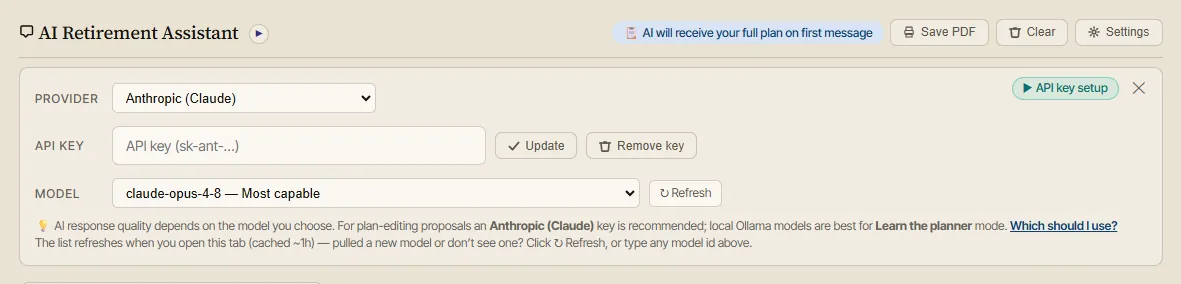
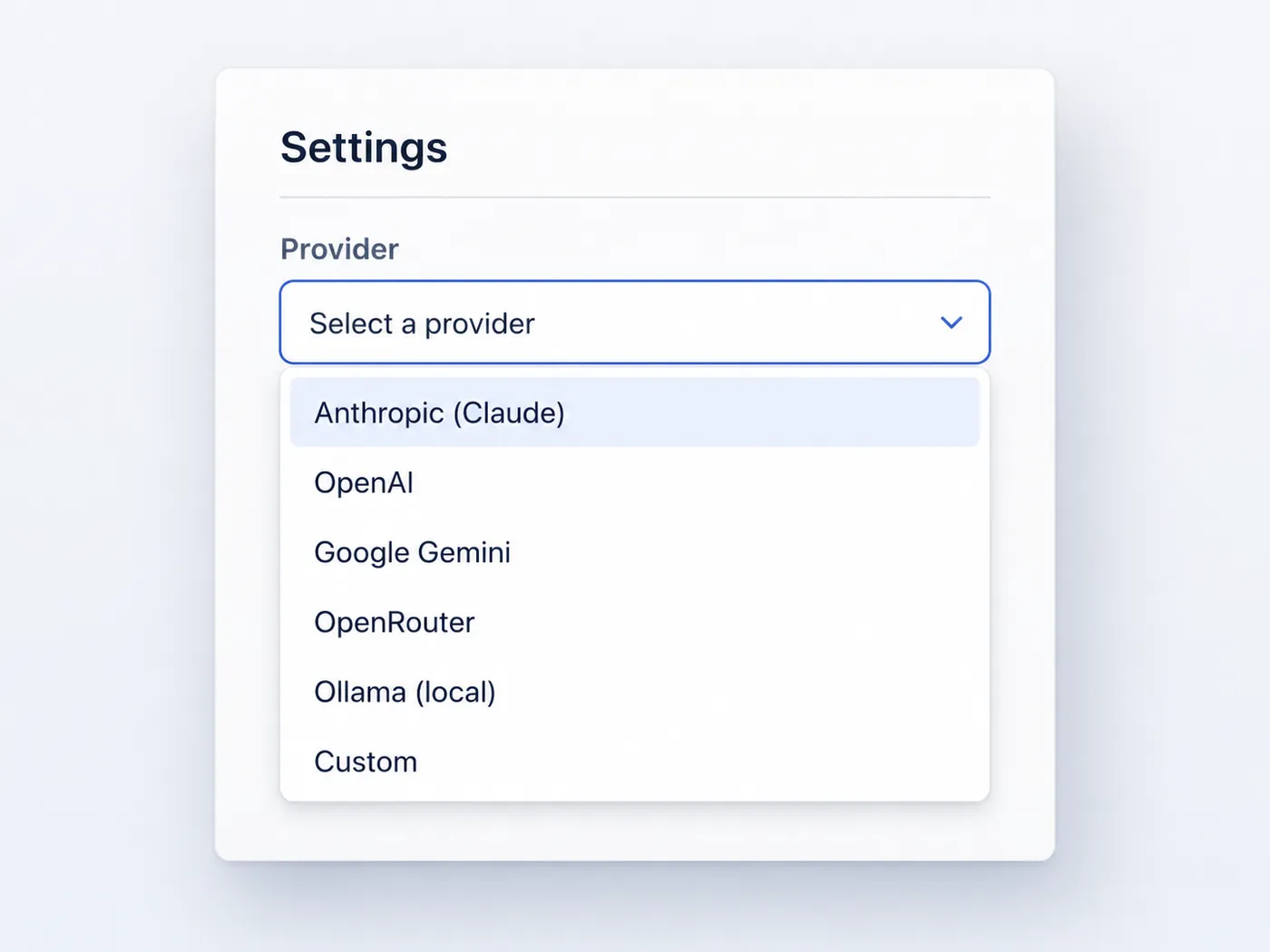
- Provider is a dropdown listing all six options. Choose one, and the key field, help text, and model list update to match it.
- API key is where you paste the key for that provider (Ollama needs none). Two buttons sit next to it: Update saves or changes the key, and Remove key deletes it from this device.
- Model is a dropdown of suggested models, each with a short hint such as "Most capable" or "Fastest and cheapest." Next to it is a Refresh button.
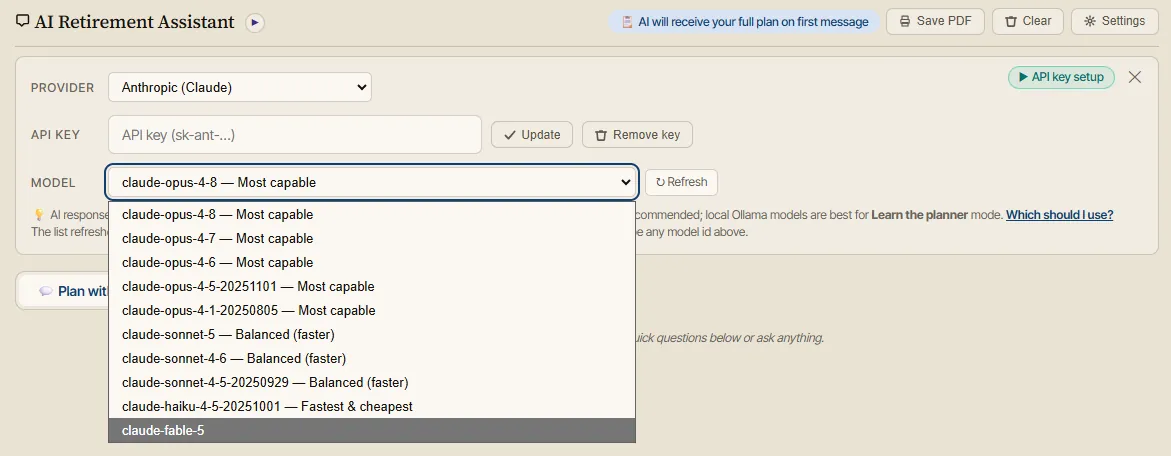
About that model list: it is discovered live from the provider and cached for about an hour, so it stays current without an app update. If you just gained access to a new model, or you do not see one you expect, click Refresh. You can also simply type any model id straight into the box, which is handy for a specific Ollama model you have pulled or a brand-new release.
Setting Up Your API Key Safely
When you first add a key, the planner asks how you want to keep it on your device. This is an important privacy choice, and there are three options.
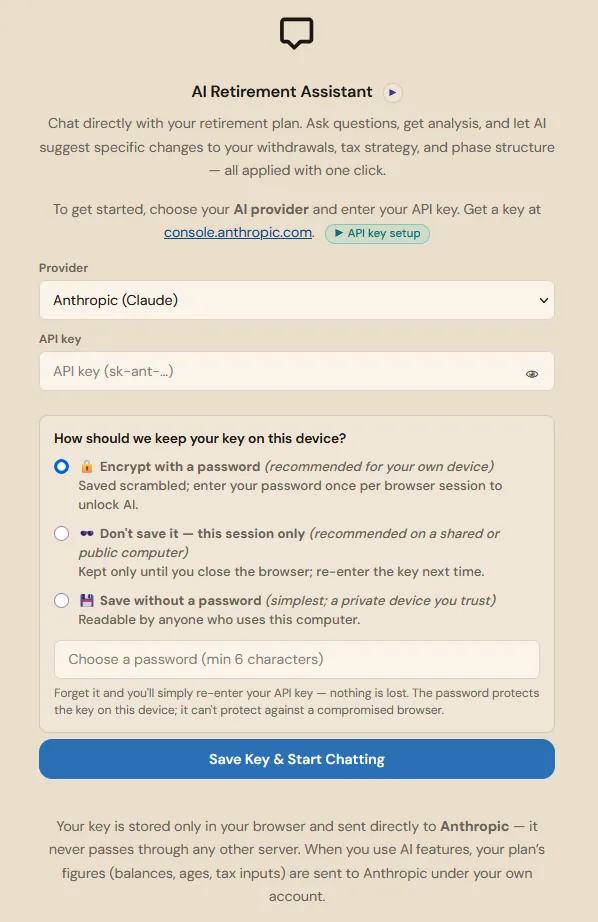
- Encrypt with a password (recommended for your own device). The key is saved scrambled, and you enter your password once per browser session to unlock AI. Choose a password of at least six characters.
- Do not save it, this session only (recommended on a shared or public computer). The key is kept only until you close the browser, then you re-enter it next time.
- Save without a password (simplest, for a private device you trust). The key is readable by anyone who uses that computer.
One reassuring detail: if you forget the password, nothing is lost. You simply re-enter your API key. The password protects the stored key on your device, but it cannot protect against a compromised browser, so treat a shared computer with care and prefer the "do not save" option there.
Once a key is saved, the setup screen collapses into the compact settings panel, where the Update and Remove key buttons let you rotate or delete the key at any time.
If you would rather watch than read, the settings area has an "API key setup" link, marked with a small play icon, that opens a short video walkthrough of getting and pasting a key.
Step by Step: Getting a Claude (Anthropic) API Key
Claude is the recommended provider, so here is the full path from nothing to a working key. The other providers follow a similar shape, just at a different website (see the table above).
- Create an account. Go to console.anthropic.com and sign up, either with Google or Microsoft single sign-on or with an email and password.
- Verify your email using the link Anthropic sends, then complete the short organization details form (name, entity type, country, and intended use).
- Add billing credits. The Claude API is pay as you go, so you fund your account by entering payment details and adding a small amount of usage credit. You only pay for what you use.
- Create the key. In the Console, open the API Keys section and create a new key. Copy it immediately; it starts with
sk-ant-and is shown only once. - Paste it into the planner. Back in the AI Chat tab, set the provider to Anthropic (Claude), paste the key, choose how to store it, and click Save Key and Start Chatting.
A good habit: start with a small credit balance and a cheaper model while you get comfortable, then switch the model dropdown to Opus 4.8 or Fable 5 when you want a serious plan review.
Getting Started With the AI Features
Once your key is in, you do not have to think up a question from scratch. Both modes offer starter chips you can click.
In Plan with AI, the starters include:
- Summarize and flag risks
- Tax bracket check
- ACA / CSR check
- Withdrawal strategy
- Propose optimizations
- Roth conversion advice
"Propose optimizations" is the one many people use first: it returns specific numeric changes sized to respect your tax brackets, ACA cliff, and IRMAA thresholds, which you can apply with one click. It pairs naturally with questions about how much you can safely spend in retirement.
In Learn the planner, the starters are how-to questions such as "Where do I set my Social Security claiming age?" or "How do I add a one-off lump sum like an inheritance?" For a step-by-step guide to working with both modes, see how to use the AI co-pilot.
You can also send the AI a question straight from elsewhere in the app. Many results, including the stress tests, the Plan Health checks, and Monte Carlo and historical backtests, have an "Ask AI about this" button that opens the chat with a detailed, plan-aware question already written for you.
Clearing the Conversation
The AI Chat tab has a Clear button in its header. It empties the current conversation so you can start fresh, and it asks you to confirm first because it cannot be undone. Clearing works per mode: it clears whichever conversation, Plan or Learn, you are currently viewing, and in Plan mode it also dismisses any pending change proposals.
Privacy and Cost, in One Place
To summarize the trade-offs:
- Most private and free: Ollama, running a local model on your own machine. Nothing leaves your device.
- Best plan analysis: Anthropic Claude (Opus 4.8 or Fable 5), paid per use, with your plan figures sent to Anthropic under your own account.
- Lowest paid cost: a free-tier or low-cost model such as Gemini Flash, or a cheaper Claude Haiku model, especially for Learn-the-planner questions.
Whichever you choose, the key stays in your browser, the planner keeps running fully without AI if you prefer, and you can remove the key at any time. That approach, along with keeping every AI proposal under your review, is what a retirement AI assistant should and should not do.
FAQ
Do I need an API key to use the retirement planner?
No. The planner is fully usable without any AI. The AI assistant is an optional extra that needs a key from a provider you choose (except Ollama, which needs no key).
Which AI model is best for retirement plan analysis?
Claude Opus 4.8 or Claude Fable 5. The planner's AI prompts and change-proposal format were tuned against Claude during development, so those models produce the most reliable plan edits.
Can I use a free or local AI model?
Yes. Ollama runs open models on your own computer for free and keeps your data local, which is ideal for the "Learn the planner" chat. Google Gemini also has a free tier. Local and free models are less capable for deep plan analysis than Claude Opus or Fable 5.
Is my retirement data safe when I use AI?
Your key and requests go directly from your browser to the provider you picked, never through a planner server. With Ollama, nothing leaves your device at all. With cloud providers, your plan figures are sent to that provider under your own account and their privacy terms.
How do I switch to a newer model that is not listed?
Click the Refresh button next to the model dropdown to re-pull the provider's live model list (it is cached for about an hour), or type the exact model id directly into the box.
How do I remove my API key?
Open the AI settings panel and click Remove key. You can also choose the "do not save it" option when entering a key so it is never stored between sessions.
What is the difference between Plan with AI and Learn the planner?
Plan with AI reads your real plan and proposes numeric changes you approve. Learn the planner is a how-to chat about using the app. Plan mode benefits from a capable model; Learn mode runs fine on cheap or local models.
Sources
- Anthropic, "How can I access the Claude API?": https://support.anthropic.com/en/articles/8114521-how-can-i-access-the-anthropic-api
- Anthropic, "I have created an account in Console, what should I do?": https://support.anthropic.com/en/articles/8114531-i-have-created-an-account-in-console-and-i-want-to-start-using-the-api-what-should-i-do
- Anthropic Console: https://console.anthropic.com
- OpenAI Platform API keys: https://platform.openai.com/api-keys
- Google AI Studio API keys: https://aistudio.google.com/apikey
- OpenRouter keys: https://openrouter.ai/keys
- Ollama: https://ollama.com
Educational Disclaimer
This article is for general education only. It is not financial, tax, investment, or legal advice, and it is not official guidance from any AI provider. AI models can be wrong. Always review AI suggestions against your own numbers and a qualified professional before acting. Provider names, models, and pricing change, so confirm current details with each provider.