
Short Answer
Open the currency converter from the calculator icon at the end of the currency bar, or from Help → Converter. Type an amount, choose the two currencies, and read the result. It uses whichever exchange rates the planner is using at that moment, live or your own, and it never changes your plan.
The bigger currency question is whether income paid in dollars still covers a life priced in pounds, pesos or euros. That one is answered in the plan itself, and it helps to know one thing first: the planner keeps every amount in US dollars and translates it for display. Moving an exchange rate changes how the plan reads in local currency. It does not change the plan's dollars. To test a weaker dollar properly, raise the dollar amounts your local costs will need and compare that version with your base plan.
Key Takeaways
- The planner has seven currency buttons: USD, GBP, CAD, AUD, PHP, THB and EUR.
- A currency button sets where you live as well as a currency. It decides which tax rules apply and whether US healthcare costs are in the plan.
- PHP, THB and EUR put the plan in foreign-residence mode: no local tax is applied, the US healthcare lines drop out, and an overseas healthcare cost field appears.
- The converter is a calculator. It reads the planner's rates and changes nothing in your plan.
- Every amount is stored in US dollars. Changing a rate changes the local-currency view, not Plan Health, the Plan Confidence score or the simulations.
- Live rates are fetched automatically when the planner opens. Custom rates last for the session and are not saved with the plan, so write them in your plan notes.
- A US tax return is prepared in dollars under its own translation rules, so check IRS guidance for filing.

What The Currency Converter Does
The converter is a quick translation tool. It has:
- An Amount box, a From currency and a To currency, with a ⇄ button to swap them.
- The result, and the rate in both directions.
- A Using line that says which rates are in effect: live rates, your custom rates, or the built-in defaults.
- A table showing the same amount in all seven currencies.
It opens on your plan's active currency. Nothing you type into it reaches the plan. Use it to check a number before you enter it somewhere else.
That is useful when you have a figure in one currency and need a feel for it in another:
- A rent quote in local currency.
- A healthcare premium quoted abroad.
- A UK State Pension statement in pounds.
- CPP or OAS figures in Canadian dollars.
- Superannuation or Age Pension estimates in Australian dollars.
- Money sent to family in another currency.
- Home sale proceeds in one currency and a replacement home priced in another.
The useful question for each one is:
What currency does this cost or income actually occur in?
The Seven Currency Buttons And What Each One Changes
The currency bar sits at the top of the planner. Choosing a currency does more than relabel the figures. It sets the plan's country context.
- USD runs US rules: federal tax, optional state tax, ACA before Medicare, Medicare and IRMAA after it, RMDs and Social Security.
- GBP, CAD and AUD add a residence toggle. UK Res. applies UK income tax, with a Foreign Tax Credit against the US bill. CAN Res. applies Canadian federal tax with a simplified provincial rate. AUS Res. applies Australian tax and the Medicare levy. In each of those residence modes the US healthcare lines drop out. With USA Res. selected, the plan stays on US rules. CAD plans also get CPP and OAS fields, and AUD plans get Super and the Age Pension.
- PHP, THB and EUR switch on foreign-residence mode. No local tax model is applied (the euro alone covers countries with very different tax systems). ACA, Medicare and IRMAA are excluded, and an Overseas healthcare cost /mo field appears. US federal tax still runs unless you switch it off under US tax obligation in Edit values.
So picking PHP, THB or EUR does not give you Philippine, Thai or European tax. It gives you a US-dollar plan for someone living outside the United States, shown in local currency when you want it. If you are still deciding whether to move at all, comparing retiring in the US vs abroad sets out what else belongs in that decision.
Display Currency: The Plan Is Kept In US Dollars
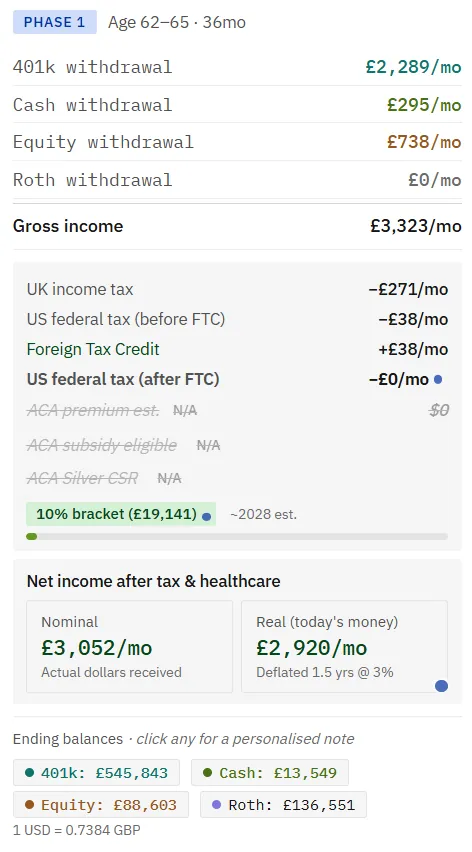
When a currency other than USD is active, two buttons appear beside the Retirement phases heading, for example USD and GBP. They change what is displayed and nothing else. Every calculation runs in dollars, and while the display is in local currency each phase card shows the rate it used, such as "1 USD = 0.7384 GBP".
Two things follow from that.
First, an amount you type into Edit values while the display is in local currency is converted to dollars at that moment's rate and stored in dollars. A UK State Pension entered as £900 a month is held as its dollar value. If the pound later moves, the plan does not re-price it. You would enter it again.
Second, editing figures directly on the phase cards works only while the display is set to USD. Use Edit values to enter local-currency amounts.
Live Rates And Custom Exchange Rates
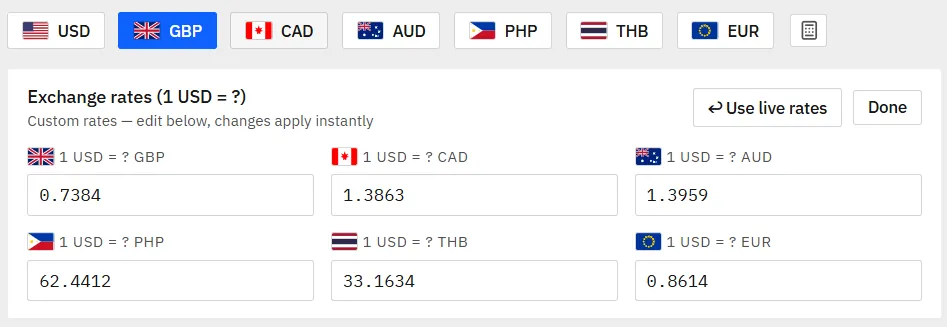
When the planner opens, it asks a public exchange-rate service for current US dollar rates. The request carries nothing about you or your plan. The status near the top of the page shows "Live rates ✓" when it works. If there is no connection, the planner uses its built-in rates and opens the rate panel so you can type your own.
To set your own rates, click Override rates on the currency bar. The Exchange rates (1 USD = ?) panel lists one box per currency, each showing how many units of that currency one dollar buys. Changes apply straight away. Done closes the panel and keeps your rates in effect (the button becomes Edit custom rates so you can reopen it). Use live rates throws your rates away and fetches current ones again. The converter's Using line always tells you which set is active.
Three habits make custom rates reliable:
- Write the rate down. Custom rates are not saved with the plan. They are not in auto-save, a saved-plan slot or a JSON export, and the next time you open the planner it fetches live rates again. Record the rate, the date and the source in Plan notes (in the Saved plans panel). Notes travel with the plan and can be added as a page in Report preview.
- Change rates with the display set to US dollars. Then switch back to the local currency to read the result. That keeps the figures in the Edit values boxes in step with the new rate before you edit anything else.
- Build transfer costs into the rate. There is no fee field. If your bank or transfer service costs about 1.5%, use a rate about 1.5% less favorable than the one you see quoted.
What An Exchange-Rate Change Does, And Does Not, Change
A rate change re-prices the local-currency view: the phase cards, balances and charts, and the report if you print it in that currency.
It does not change the plan's dollar withdrawals, the tax calculated in dollars, the balances in dollars, the Plan Health checks, the Plan Confidence score, the Stress test, Monte Carlo or the historical backtest. All of those run on dollars.
That is right for the part of your life that is in dollars, such as Social Security and a 401k. It misses the part that is not. If your rent is £1,500 a month and the pound strengthens by 10%, you need about 10% more dollars to pay it. The planner does not infer that from the rate.
So there are two different currency tests, and they use different tools:
- Does dollar income still cover local costs at a less favorable rate? Set a custom rate, switch the display to the local currency, and read each phase card's net monthly income against your local budget. Nothing in the plan changes.
- Can the portfolio afford the extra dollars for the whole retirement? Raise the dollar withdrawals that fund local spending, and the overseas healthcare cost, by the size of the currency move. That is a real change to the plan, so Plan Health, Plan Confidence, the Stress test, Monte Carlo and the historical backtest all respond.
How To Use The Converter Inside A Currency Plan
Use this workflow:
- List each income source and each cost, with the currency it is actually paid in.
- Pick a planning rate: today's live rate or your own. Record the rate, date and source in Plan notes.
- Use the converter for one-off translations, such as a quote or a pension statement.
- Enter each amount in the field it belongs in; where each type of retirement income goes covers the income fields one by one. To type local amounts directly, switch the display to that currency first. They are stored as dollars at the current rate.
- Save the result as your base plan in a saved-plan slot.
- Build a weaker-dollar version by raising the dollar withdrawals that pay local costs, and the overseas healthcare cost, then save it in a second slot.
- Compare your current plan with one saved slot at a time: tax, ending balances, net income by phase, Plan Health and Plan Confidence.
The converted number has to end up in a planning field. A figure left in the converter does nothing for the plan.
Build Exchange-Rate Scenarios Within The Planner's Limits
A single exchange rate can make a plan look cleaner than it really is. Before you build versions, know three limits.
- There are three saved-plan slots, and Compare sets your current plan against one slot at a time. Keep the base plan in a slot as the fixed reference, change one thing, and export to JSON if you need more than three versions. The full mechanics are in how to save, load and compare retirement scenarios.
- A version that differs only by exchange rate is not a different plan. The rate is not saved, and the dollars are identical. Express the currency move in dollars instead.
- A plan has one residence from start to finish. It cannot switch you back to US rules at 80. A return home is a separate plan with USD selected, compared with the abroad plan.
Versions worth building:
- Home-country baseline, in USD.
- Abroad base case, with local costs entered at today's rate.
- Abroad with the dollar amounts for local costs raised 10% to 15%.
- Abroad with a weaker dollar and a higher overseas healthcare cost.
- A return-home plan in USD, with US healthcare back in.
Then compare:
- Net monthly income by phase.
- Tax.
- Withdrawals.
- Ending balances.
- Plan Health.
- Plan Confidence.
Monte Carlo and the historical backtest will move between these versions too, because the withdrawals differ. They would not move for a rate change alone.
The question is not which exchange rate is perfect. The question is whether the plan can handle movement.
Currency And Taxes
Currency conversion for planning and currency conversion for tax reporting are related but not identical.
The IRS says U.S. taxpayers must report amounts on U.S. tax returns in U.S. dollars. It also explains that if income or expenses are in foreign currency, the taxpayer must translate the foreign currency into U.S. dollars, and that how this is done depends on the taxpayer's functional currency. The IRS also publishes yearly average exchange rates.
The planner's live and custom rates are planning figures, not filing rates. If you use the UK residence setting, note that the UK personal allowance and tax bands in Edit values are held in dollars as well, with the pound equivalent at today's rate shown beside each label. A large move in the pound is worth a look there too.
For tax filing, verify the rule and rate source with official IRS guidance or a qualified tax professional. The wider tax picture of a move, from foreign tax credits to state residency, is covered in expat retirement taxes.
Currency And Healthcare Abroad
Healthcare can be one of the biggest currency-sensitive items for people living abroad.
Whenever US healthcare is excluded (PHP, THB or EUR, UK, Canadian or Australian residence, or a plan set as not subject to US tax), the Overseas healthcare cost /mo field appears in the healthcare costs card of Edit values. It is stored in dollars and grows each phase at your healthcare inflation rate. A weaker dollar does not raise it, so raise it yourself in the stress version. The way healthcare costs shift with where you live and what you earn is covered in how healthcare costs move with income.
Fold these into that one monthly figure, or into your spending:
- Local premium.
- Local out-of-pocket costs.
- International policy cost.
- Travel for care.
Keep an emergency reserve in the cash balance, and put the cost of US healthcare after a move home into the return-home plan.
Healthcare and currency should be tested together.
A Currency Converter Workflow, Start To Finish
Imagine a retiree with:
- Social Security paid in USD.
- Brokerage assets in USD.
- Rent and groceries paid in euros.
- Healthcare paid locally.
- An annual trip home paid in USD.
The retiree builds:
- An EUR plan in foreign-residence mode, with local spending entered in euros at today's live rate, noted in Plan notes. This is the base, saved in slot 1.
- A conservative version, with the withdrawals that pay euro costs and the overseas healthcare cost raised 12% in dollars. Saved in slot 2 and compared with slot 1.
- A healthcare stress version, with the overseas healthcare cost raised further. Saved in slot 3.
- A return-home plan in USD, with US healthcare back in, exported to JSON because the three slots are full.
Then the retiree reads each version against the base:
- Net monthly income by phase, displayed in euros.
- Withdrawals.
- Healthcare costs.
- Ending balances.
- Plan Health.
- Plan Confidence.
The converter translates the numbers. The versions built in dollars show whether the plan holds.
Common Currency Conversion Mistakes
Avoid these mistakes:
- Using one exchange rate for the whole retirement plan.
- Expecting a rate change to move Plan Health or the simulations, instead of changing the dollar amounts.
- Forgetting transfer fees.
- Mixing up conversion direction. The planner's rates read 1 USD = ? local currency.
- Entering local spending while the display is set to the wrong currency.
- Treating PHP, THB or EUR as local tax engines.
- Forgetting healthcare is paid in local currency.
- Assuming a custom rate was saved with the plan.
- Forgetting return-home costs.
- Ignoring survivor income.
- Assuming planning conversion rules match tax-reporting rules.
Currency planning is about repeatable assumptions, not perfect forecasts.
FAQ
Where is the currency converter?
Click the calculator icon at the end of the currency bar, or open Help and choose the Converter tab.
Which currencies does the planner support?
Seven: USD, GBP, CAD, AUD, PHP, THB and EUR.
Does changing the exchange rate change my plan's results?
It changes how the plan reads in local currency. The plan is calculated in US dollars, so Plan Health, Plan Confidence, the Stress test, Monte Carlo and the historical backtest stay the same. To test a weaker dollar, raise the dollar amounts your local costs will need.
Does the planner support country-specific tax modeling for every currency?
No. The UK, Canadian and Australian residence settings apply those countries' income tax. PHP, THB and EUR are foreign-residence modes with no local tax model. Verify local rules separately.
Are custom exchange rates saved with my plan?
No. They last until you close the planner and are not included in saved plans or JSON exports. Record the rate, date and source in Plan notes.
Does the planner go online for exchange rates?
Yes. When the planner opens it requests current US dollar rates from a public rates service. The request contains nothing about you or your plan. Without a connection, it uses built-in rates and lets you type your own.
Is the currency converter enough for expat planning?
No. Currency is one part. Also model taxes, healthcare, Social Security, pensions, withdrawals, housing, travel, survivor income, and a return home.
Source Links
- AI Retirement Income Planner: https://airetirementincomeplanner.com/
- WebNomad AI Retirement Income Planner feature page: https://webnomad.webflow.io/pages/ai-ready-retirement-income-planner
- IRS foreign currency and currency exchange rates: https://www.irs.gov/individuals/international-taxpayers/foreign-currency-and-currency-exchange-rates
- IRS yearly average currency exchange rates: https://www.irs.gov/individuals/international-taxpayers/yearly-average-currency-exchange-rates
- Investor.gov retirement planning resources: https://www.investor.gov/introduction-investing/investing-basics/glossary/retirement-planning
Educational Disclaimer
This article is for general education only. It is not financial, tax, investment, legal, healthcare, insurance, immigration, currency, exchange-rate, Social Security, Medicare, estate, AI safety, software, or retirement advice. Exchange rates, tax rules, healthcare costs, bank fees, transfer rules, and residency assumptions can change. Confirm currency, tax, healthcare, immigration, banking, Social Security, Medicare, insurance, estate, and software details with official sources and qualified professionals. Screenshots show a sample plan with invented figures and are illustrative only.